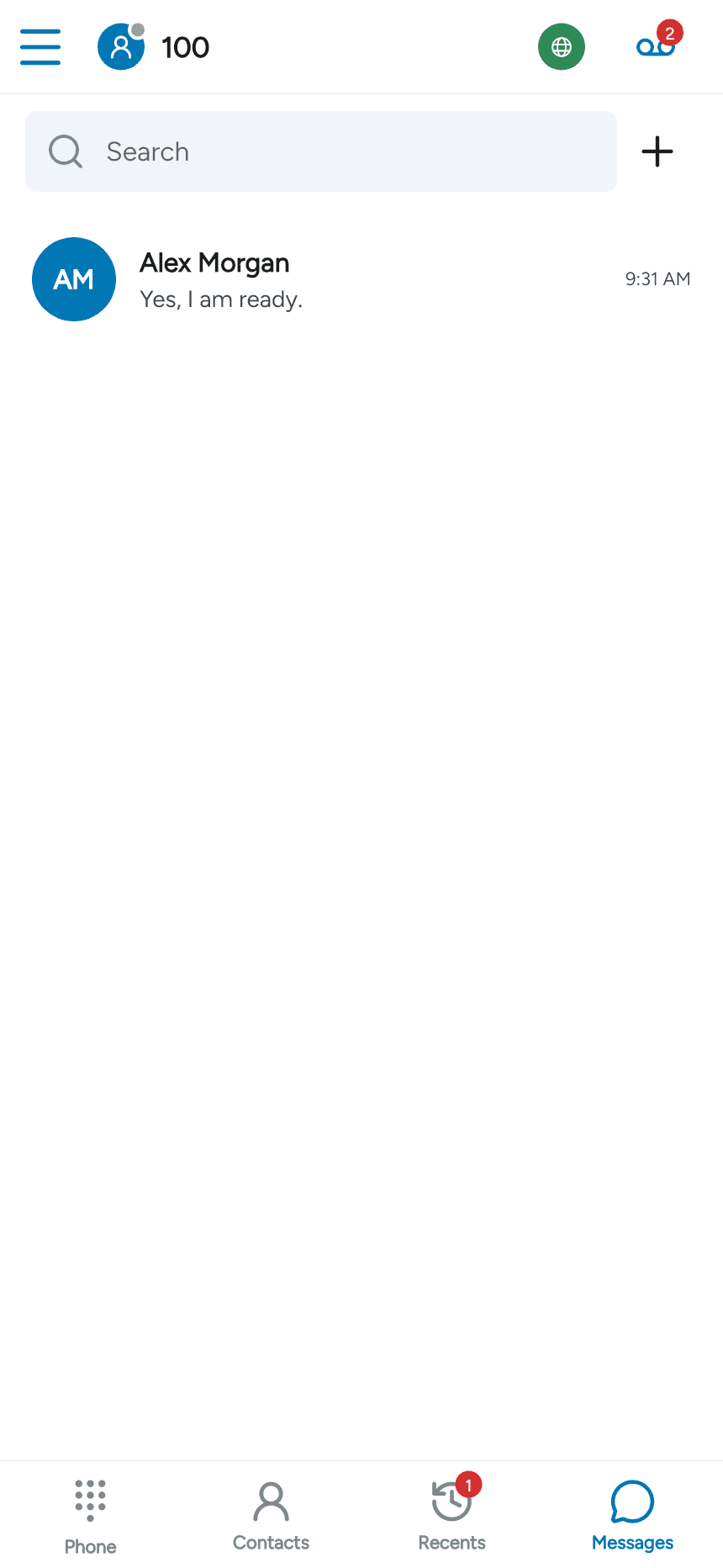
Enable messaging
Messaging requires support from your SIP service or provider. In SessionTalk Softphone, the settings marked Requires Push and Business need the corresponding upgrade. Provider-provisioned apps may control messaging centrally.
For the forthcoming Telnyx and Twilio integration on BYO PBX plans, see Text messages with Telnyx or Twilio. Your provider must connect and assign a messaging number before you can use that service.
Open Menu > Settings > Accounts and select the SIP account. Disable an enabled account before editing, then open Advanced SIP settings and expand Messaging.
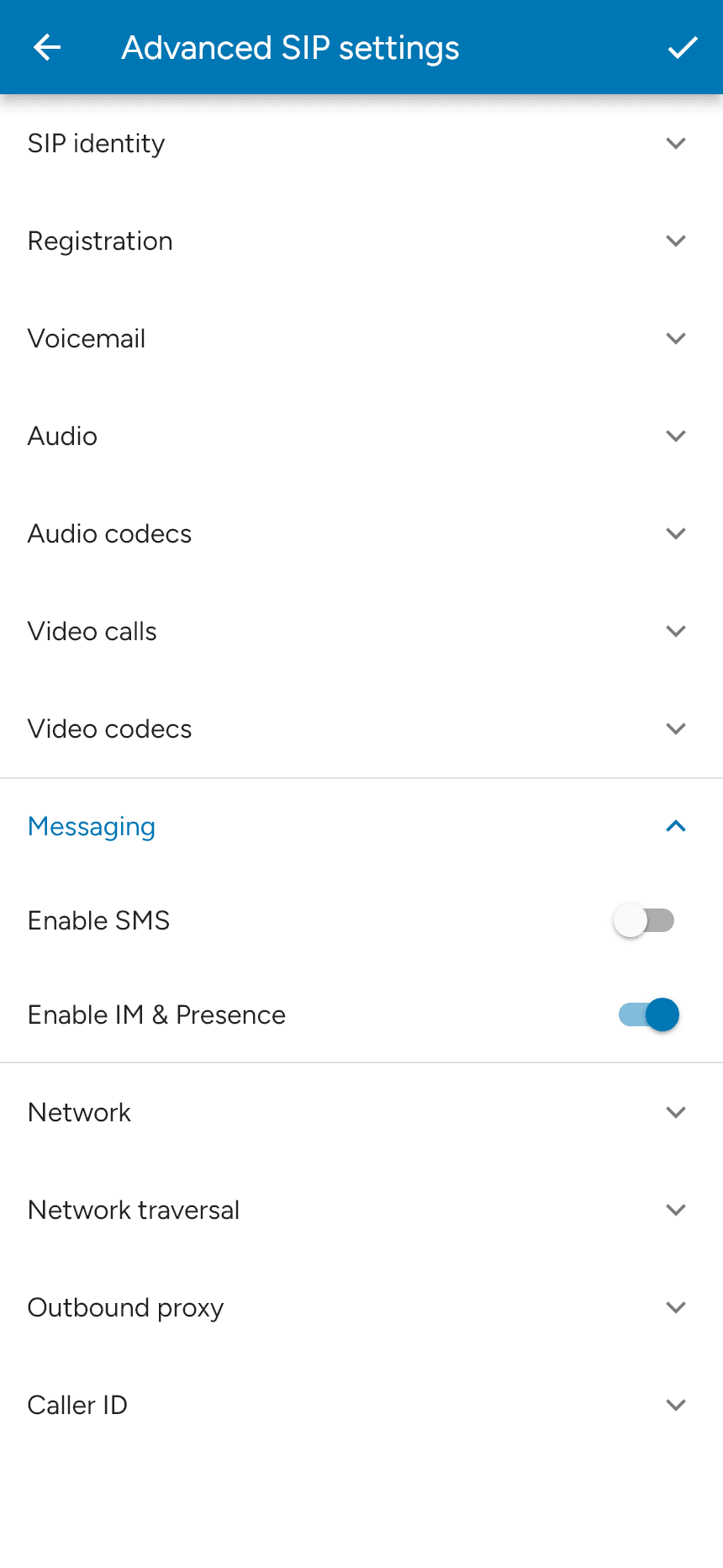
Turn on Enable IM & Presence for SIP instant messaging and presence. Enable SMS only if your service supports SMS through the account. Tap the checkmark to save, then re-enable the account.
Open Messages in the bottom tab bar. The available categories and new-message options reflect the services configured for your account. XMPP and provider-hosted chat use their own account configuration; enabling SIP IM does not set up those services.