Send a message
Open Messages in the bottom tab bar. Use Search to find a conversation by its name, address or latest message text. Category tabs appear only when more than one messaging category is available.
For the forthcoming BYO PBX SMS integration, see Text messages with Telnyx or Twilio. The steps below show SIP instant messaging.
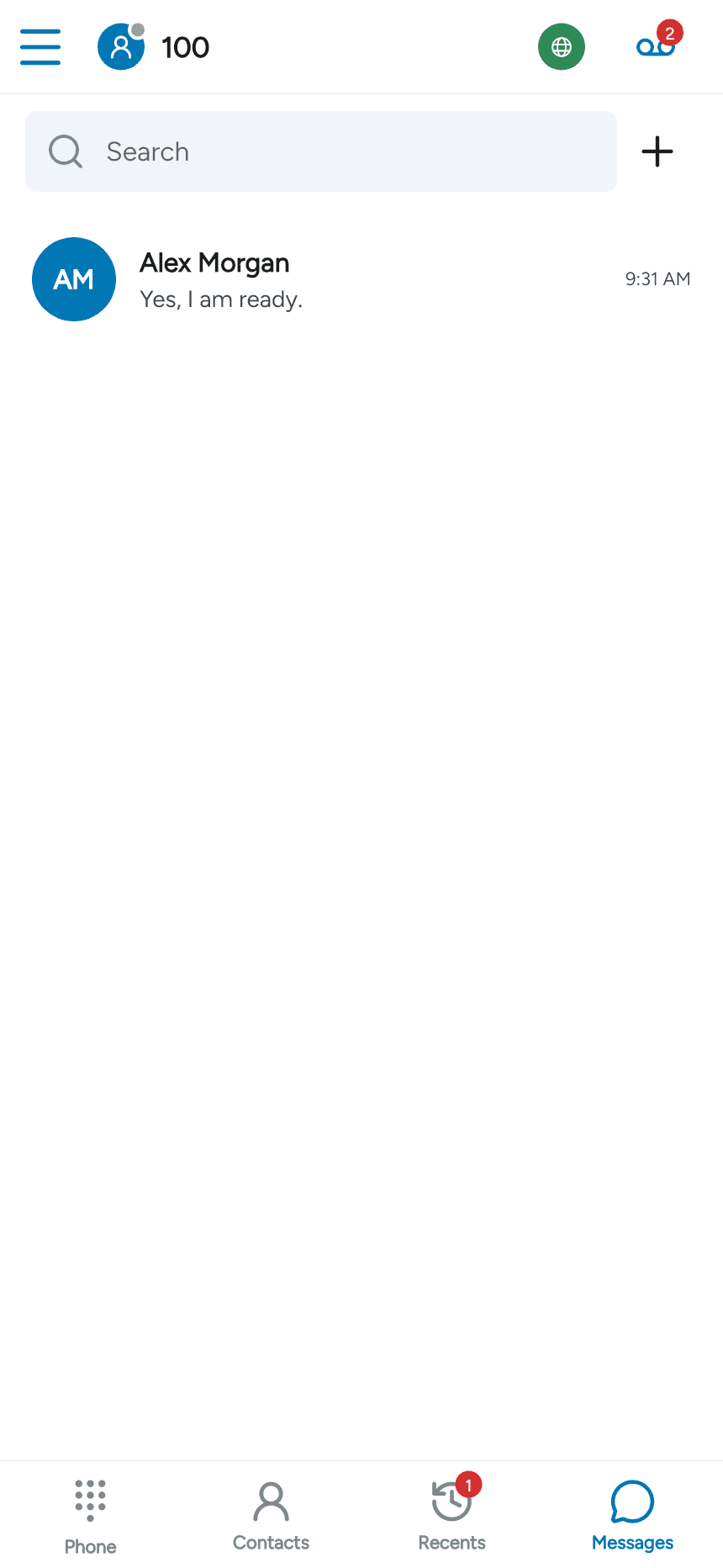
Start a conversation
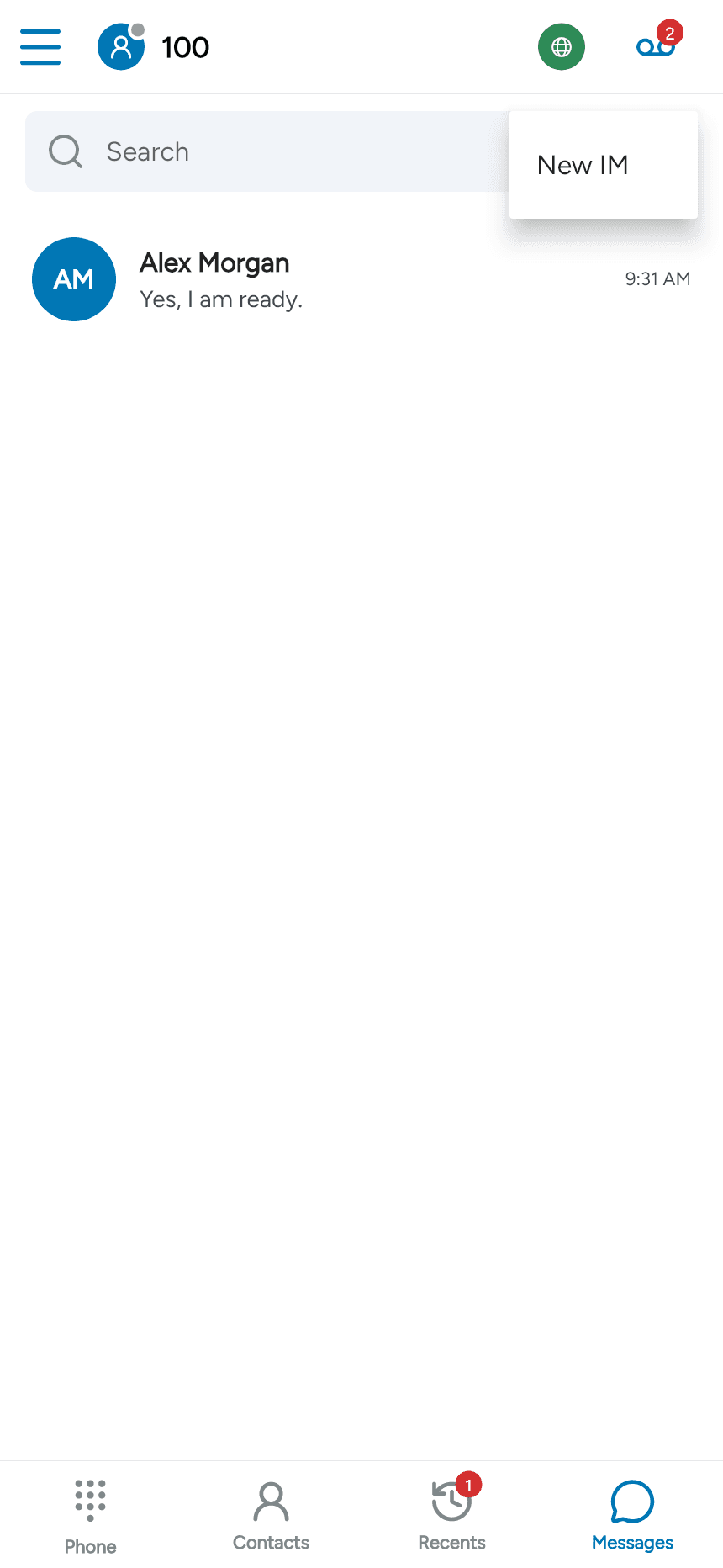
Tap + next to Search and choose New IM. The options depend on the messaging services enabled for your account. These examples show SIP instant messaging in the SessionTalk app with messaging enabled.
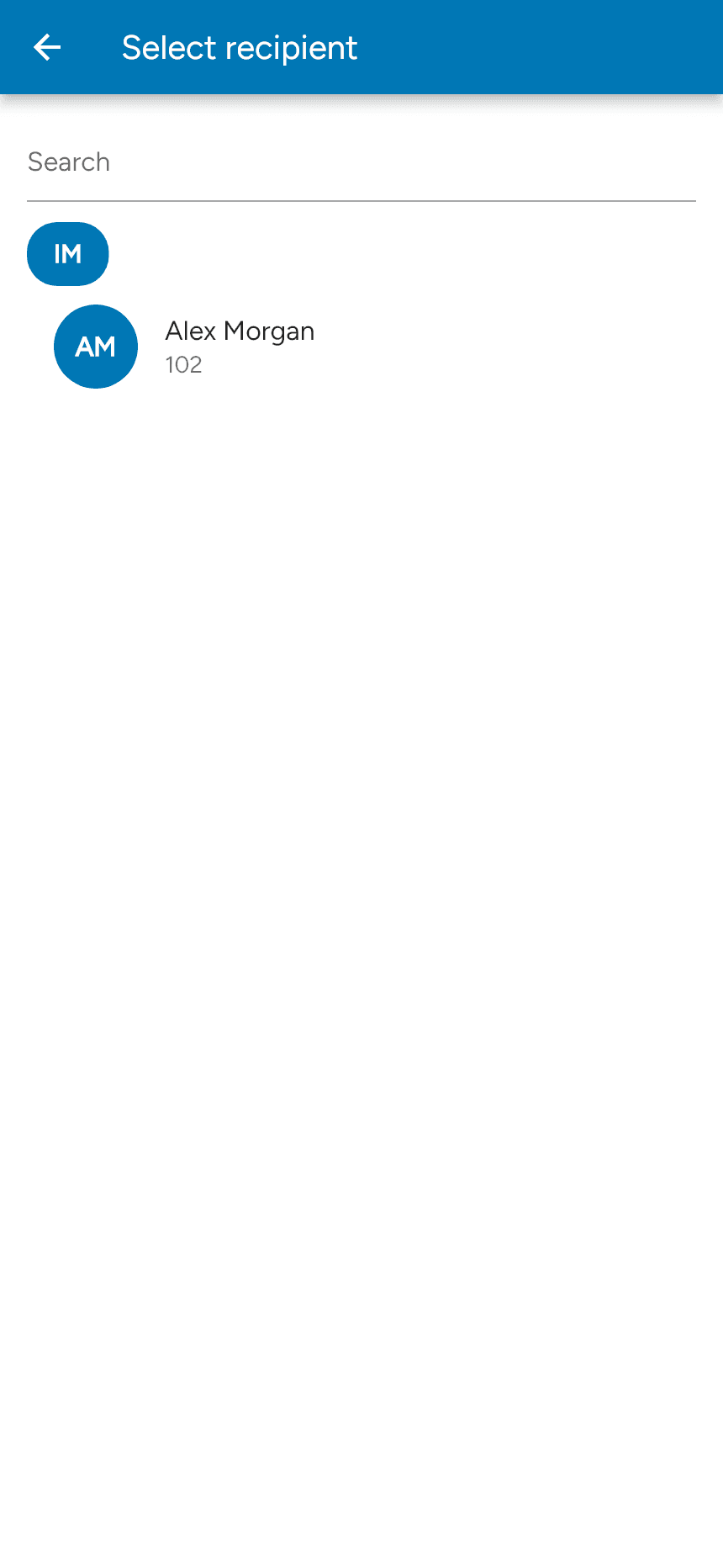
Select a recipient from the list; use Search to find them. For SIP IM, select one recipient for the conversation.
Write and send
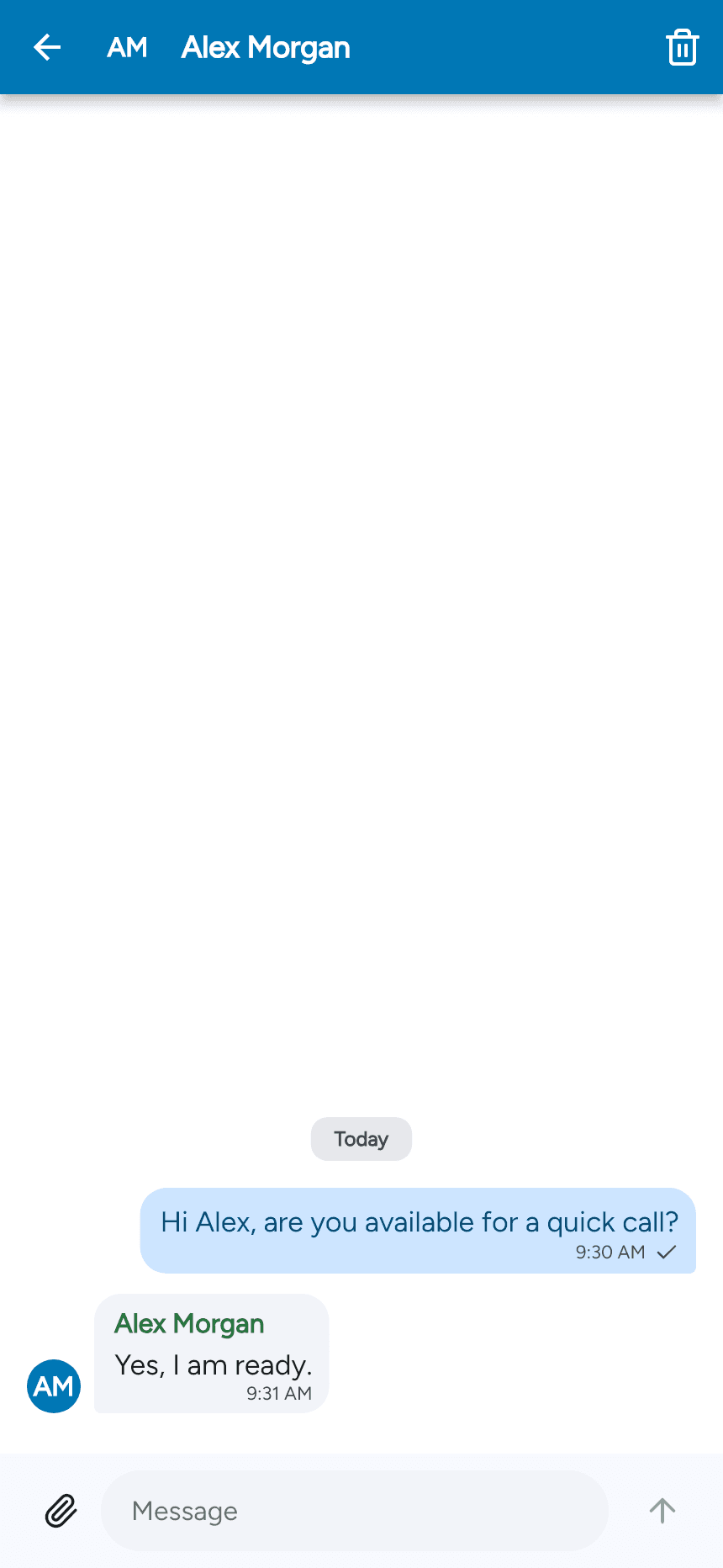
Type in the Message field at the bottom of the conversation, then tap the send arrow. The arrow becomes available when there is a message to send. Attachment options depend on your account and service.
Delete messages
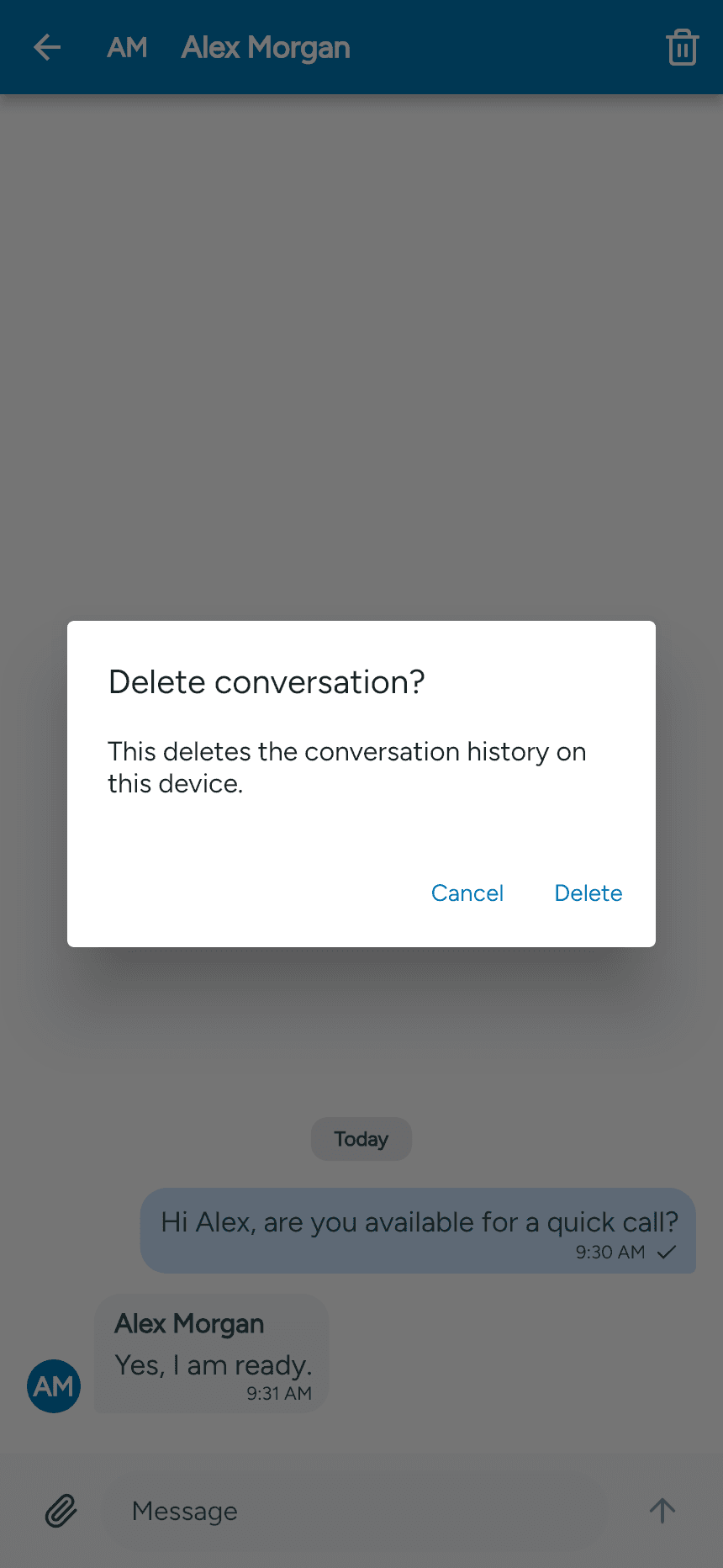
Long-press an individual message to open its available actions. To remove the entire conversation from this device, tap the trash icon at the top right and confirm Delete. This does not delete the other person’s copy.
If messaging is unavailable, see Enable messaging.