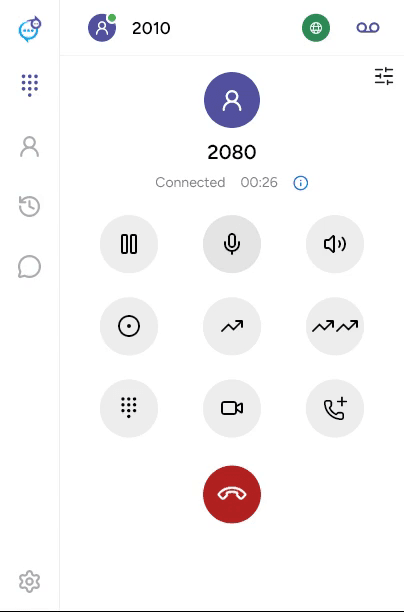
Place an audio or video call
Check that your account is registered. Select Phone in the sidebar, enter the destination and click the green phone button.
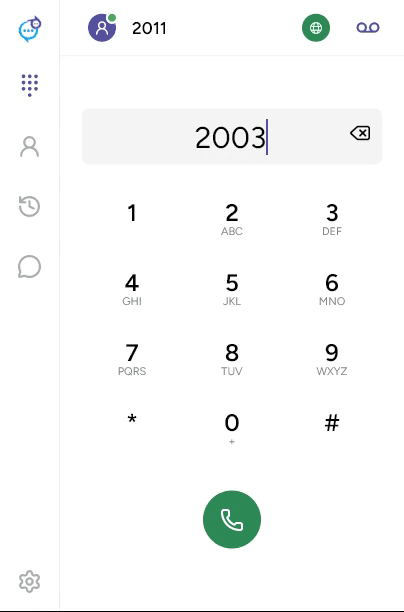
You can also open a contact or recent-call entry and use its phone button. For several accounts, first select the outgoing account.
Video calls
Use the video-camera button where available to request a video call. Video needs a camera, permission to use it, compatible service and recipient, and video enabled for the account. Some features require premium features to be enabled. See Enable video.
During a call
The call screen provides hold, mute, speaker, recording, transfer, keypad, video and add-call controls as available. Hover over an icon to see its label. Click the keypad control to send tones to an automated menu, and the red phone button to end the call.