Skip to Content
Mobile SoftphonesCall ManagementPlacing multiple calls
Mobile Softphones

How to Make Multiple Calls

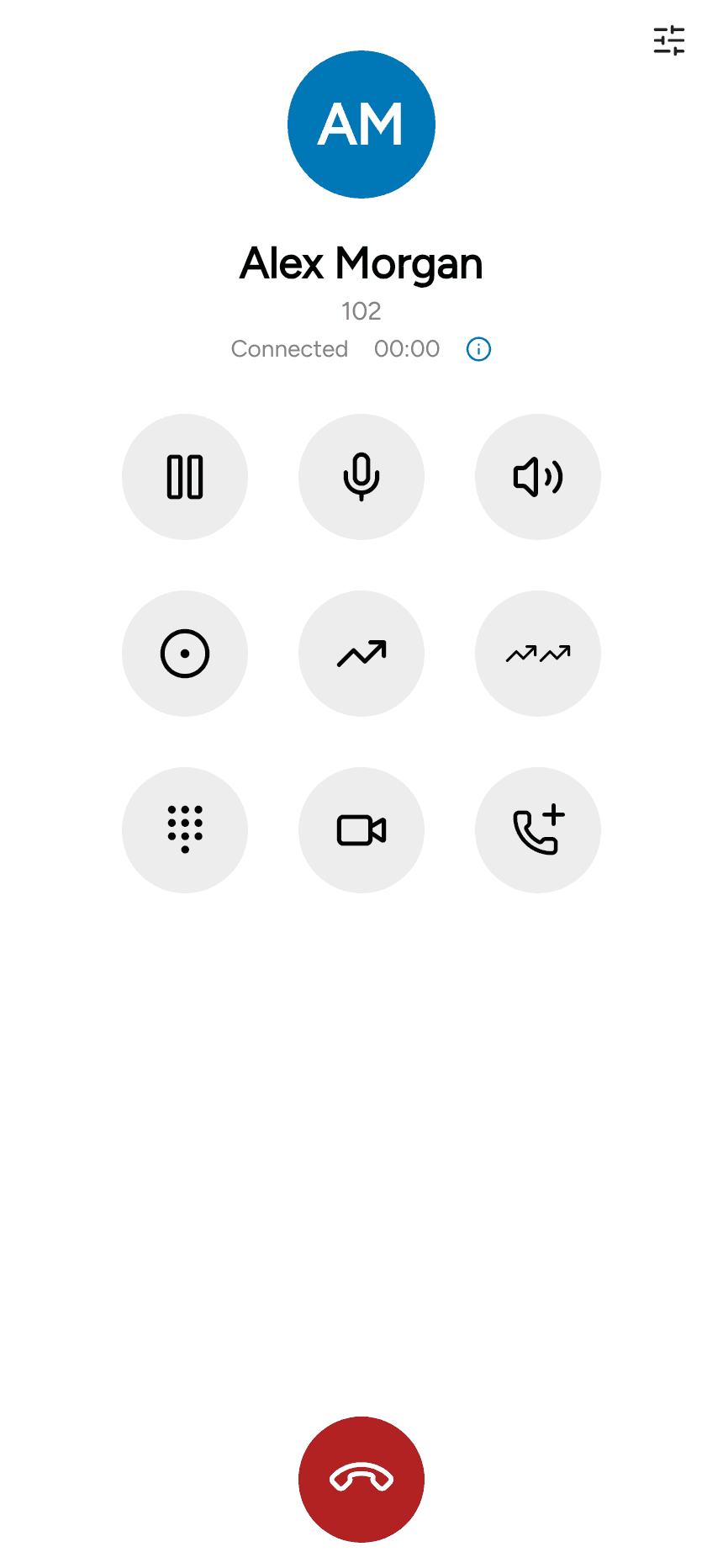
In this scenario we have a single established call with Abel, to make an additional call, tap the Add call button to navigate back to the dialpad.

Mobile softphone in-call view with an Add Call button visible

To dial more than one call, place a call using any of the methods of placing a single call. Up to six simultaneous calls can be placed. We now place a call to Gladys.

Mobile dialpad shown after tapping Add Call, ready to place a second call

Swapping calls

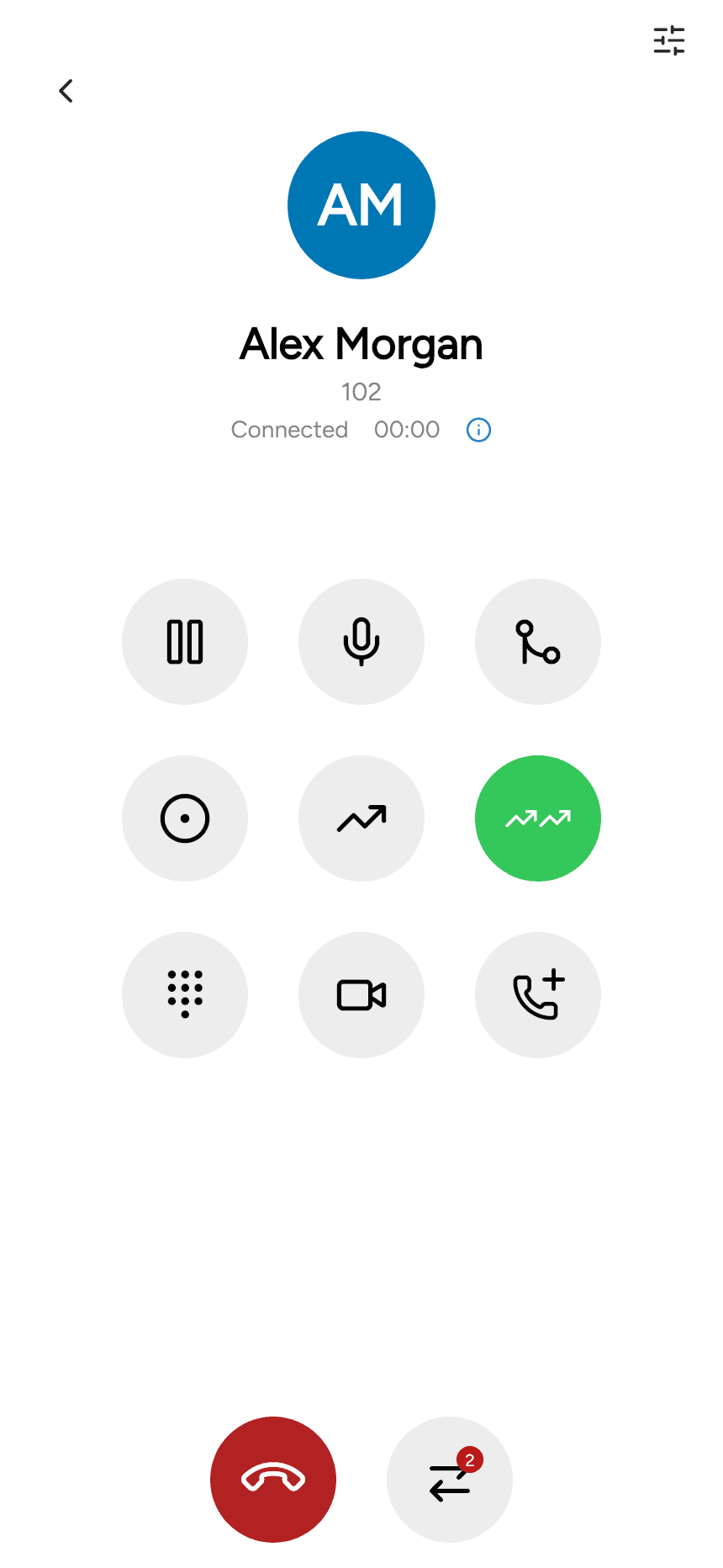
Any existing calls are automatically placed on hold.In this call flow Abel is on hold and the call with Gladys is now the active call. We now add a third call to Donette in the same way we placed a call to Gladys. Mobile softphone showing three simultaneous calls to Abel, Gladys, and Donette Swap Call button on the mobile softphone during three concurrent calls

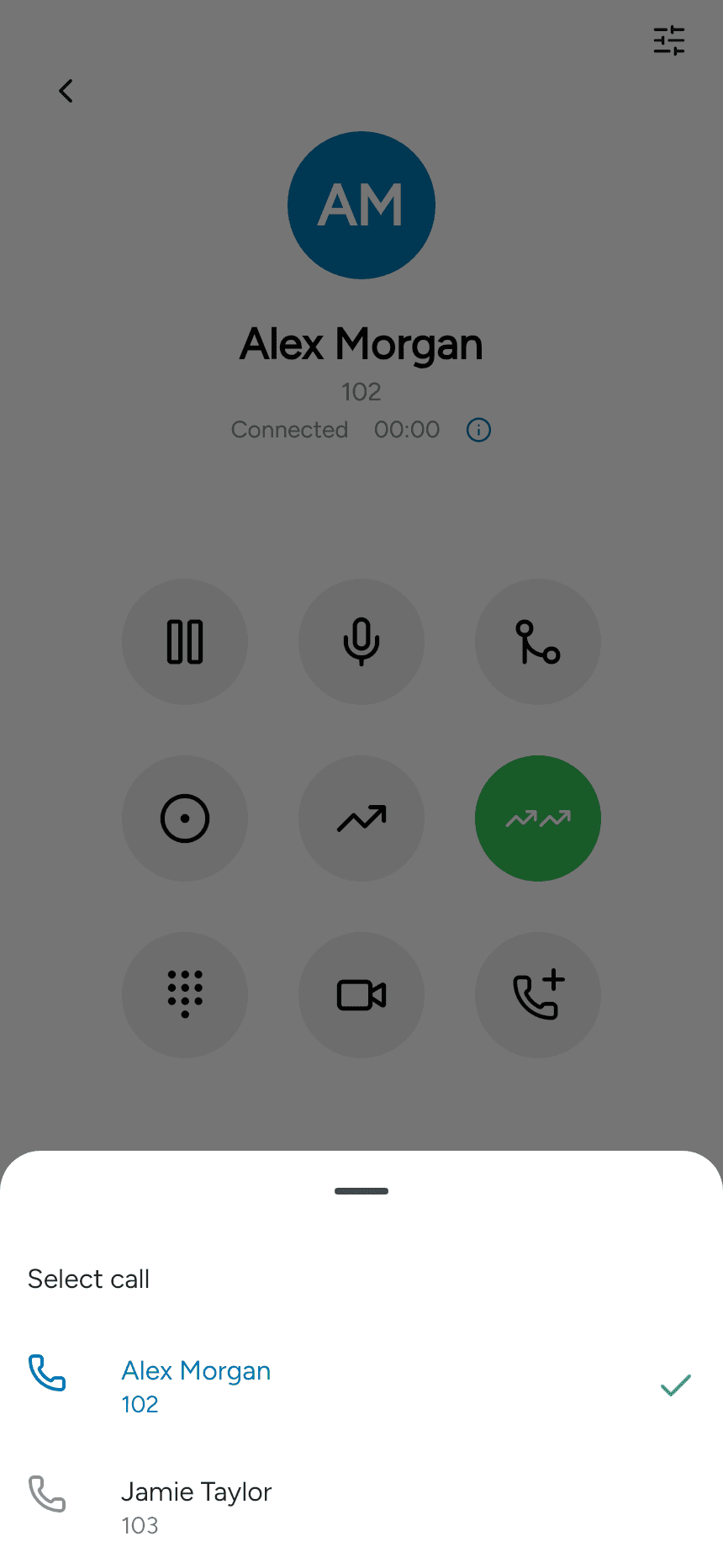
Tap the swap call button to bring up the call selector which shows all calls, then select the call you wish to swap to. Here we select Abel. Abel now becomes the active call Gladys and Donette will be placed on hold.

Mobile call selector listing all active calls (Abel, Gladys, Donette) to choose which to swap to

Merge Calls

When there is more than one call,the calls can be merged into a conference.Tap the ‘Merge’ calls icon to merge calls into a conference.

Merge Calls icon in the mobile softphone multi-call view

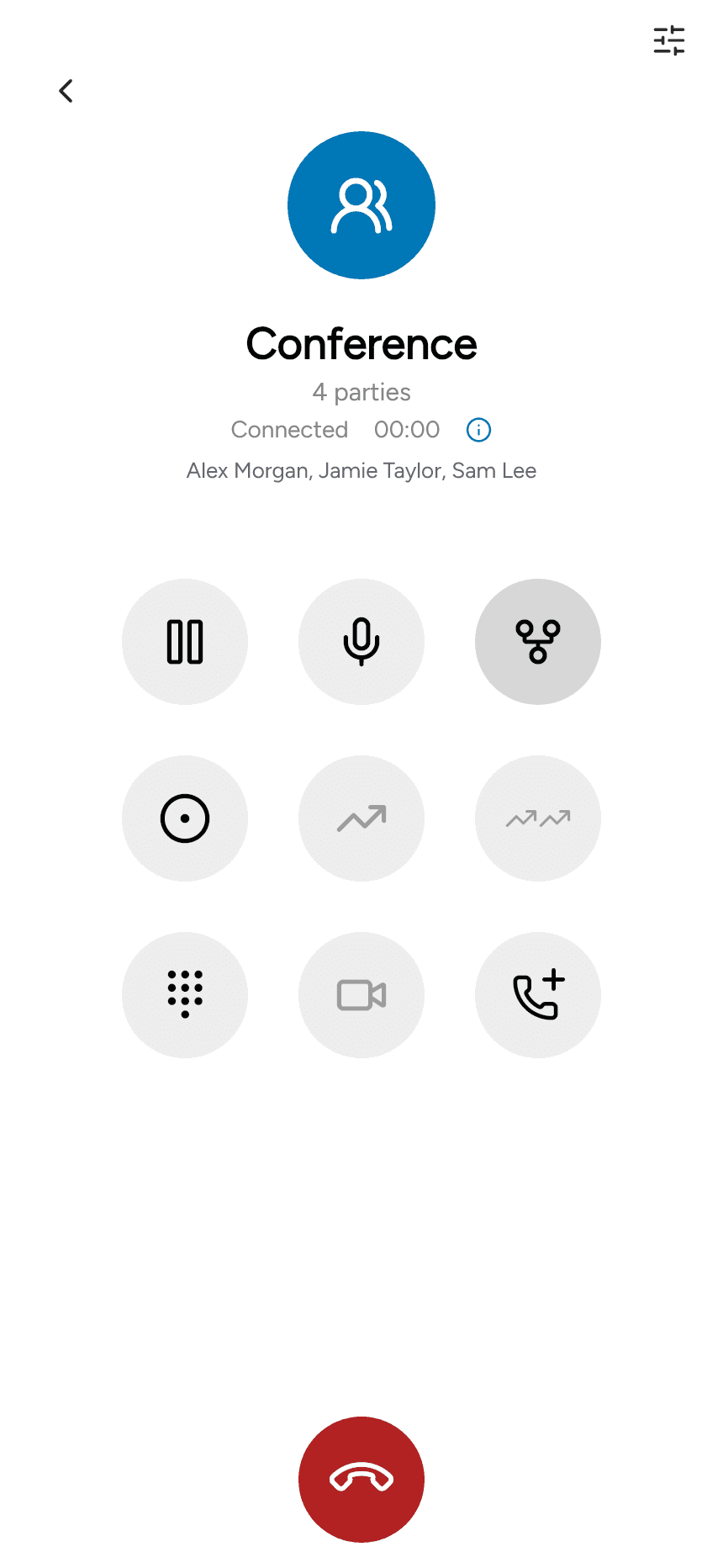
The called party display name now shows ‘Conference’.

Mobile softphone showing all calls merged into a Conference party

Split Calls

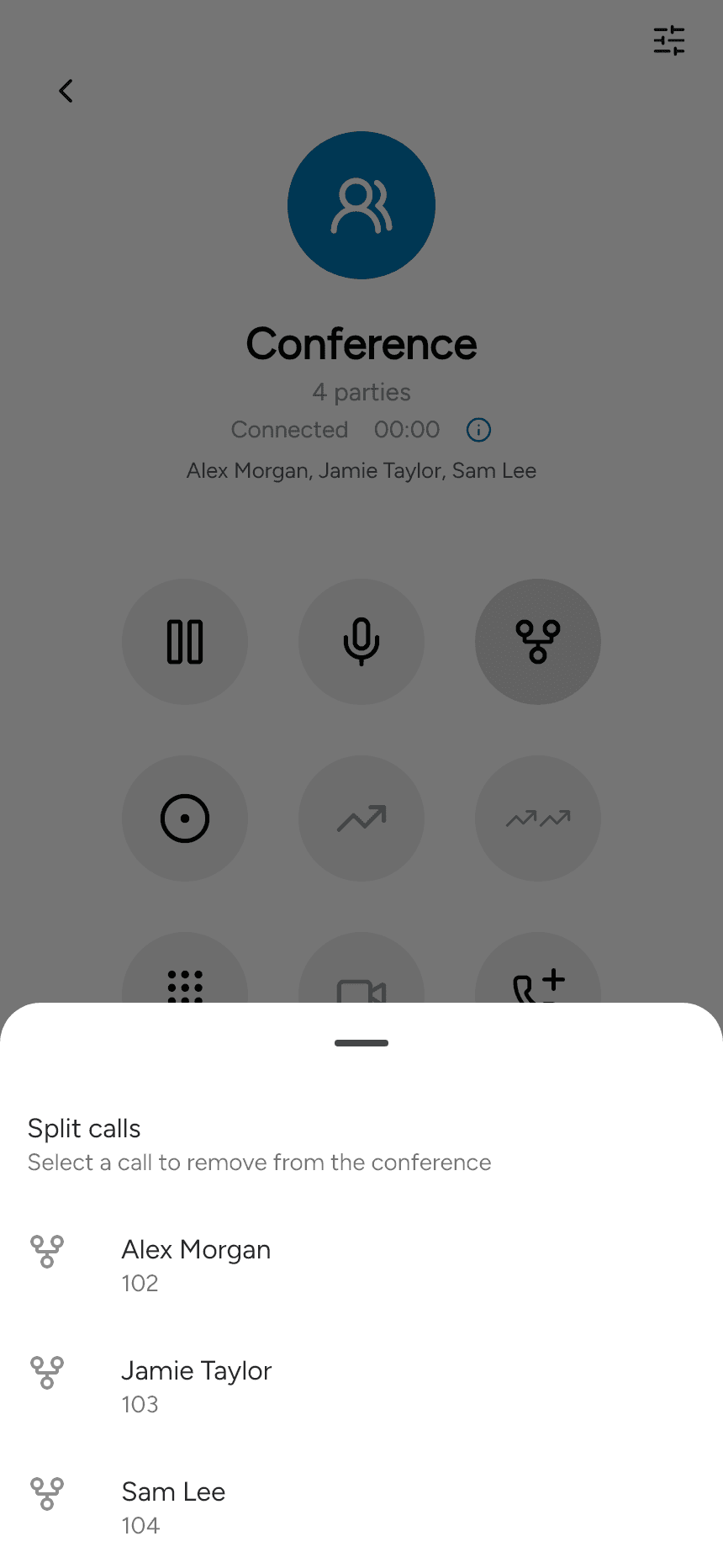
Tap the split call icon.This will show calls in the conference as a list with the option to select the call you wish to remove.Here we select Abel as the call to remove from the conference.

Split Call icon in the mobile conference view

Mobile list of calls in the conference with option to remove one

Abel is automatically placed on hold when removed from the conference. The conference is still active and contains Donette and Gladys. Tap the swap call button to select between Abel and the conference.

Mobile call view after removing Abel from the conference, Abel now on hold

Swap Call button on mobile softphone during a hold-plus-conference state

As there are now only two calls in the conference,tapping the split icon does not bring up the list of calls to remove from the conference but just splits the calls immediately.

Split Call icon in the mobile conference view

End Call

Tap the end call icon within each call panel to end that individual call. Here we end Alisha’s call.

End Call icon inside an individual call panel on the mobile softphone

Tap the global end call icon to end all calls in the conference.

Global End Call icon to hang up every call in the mobile conference

Back to Call button

If you are navigated away from the multi call view,tap the back to call green button to return.

Green Back to Call button on the mobile softphone home screen returning to the active call

Last updated on