Troubleshoot IM notifications
Keep the desktop app running and its XMPP account connected to receive messages. A fully quit app cannot maintain that connection. Window-closing behaviour can differ by platform and package, so check that the app is still running if alerts stop.
Check the account
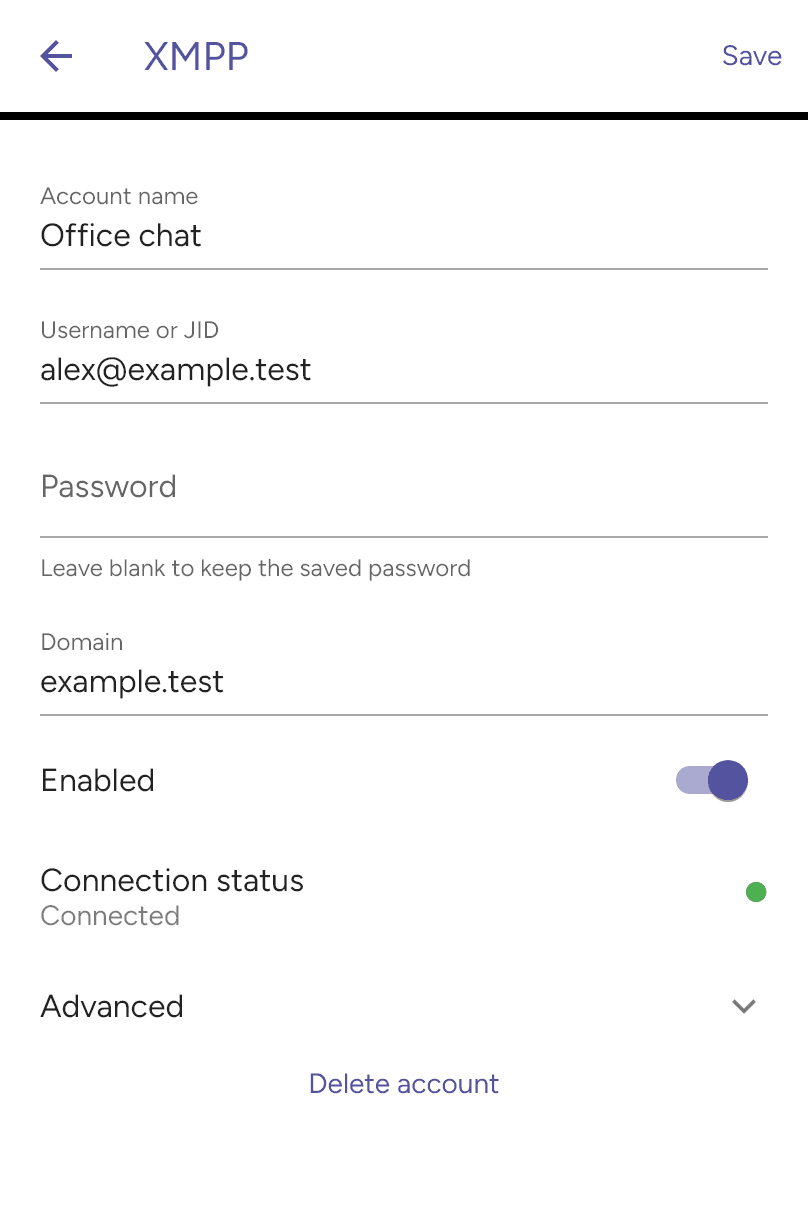
Open Settings > Accounts, select the account under XMPP, and check Enabled and Connection status. An empty conversation list does not mean IM is disconnected.
Check sounds and system alerts
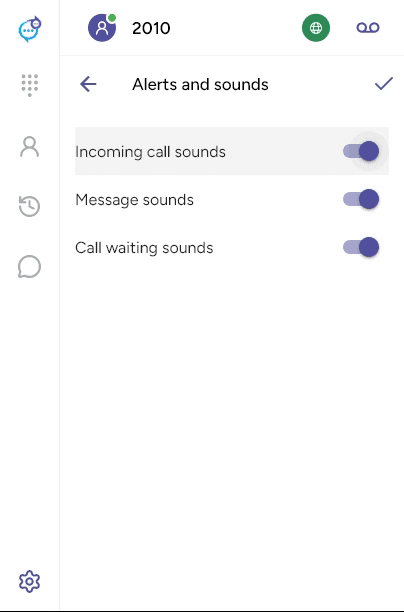
Open Settings > Preferences > Alerts and sounds. Enable Message sounds and save with the checkmark.
Check the app’s notification permission and Focus/Do Not Disturb settings in Windows or macOS. The in-app sound switch and system notification permission are separate controls. Notification presentation depends on the platform and app package.
Test delivery
Ask a colleague to send a message with the app open, then repeat with it in the background. If the message never appears, check the account and network first. If the conversation updates without an alert, check sound and system notification settings.
Give your provider the time, account and connection status if you need help. See Set up IM for account troubleshooting.