Desktop Softphones
Enable video calling
End any calls, then open Settings > Accounts and select the account. Disable it before editing and open Advanced SIP settings > Video calls. Enable video where available, save with the checkmark and re-enable the account.
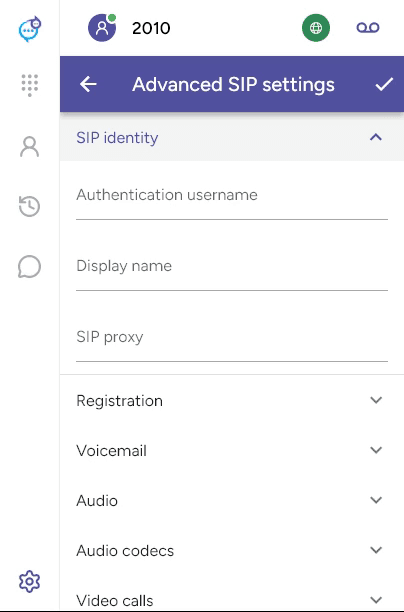
Provider-provisioned accounts only show the video settings allowed by the provider. Standalone accounts may need premium features enabled. Enabling video does not guarantee the remote endpoint or phone service supports it.
Choose the camera in Settings > Preferences > Devices and allow camera access in the operating system. Use the video-camera button to request video, either when dialling or during a compatible call.
See Camera selection and Resolution.
Last updated on