Desktop Softphones
Import contacts from CSV
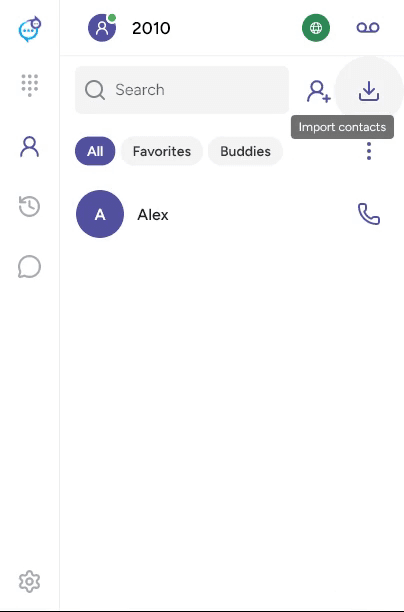
Open Contacts and click the Import contacts icon beside the add-contact button.
Click Browse and select a CSV file. Use a header row such as:
First Name,Last Name,Phone,Email
Alex,Example,2003,alex@example.test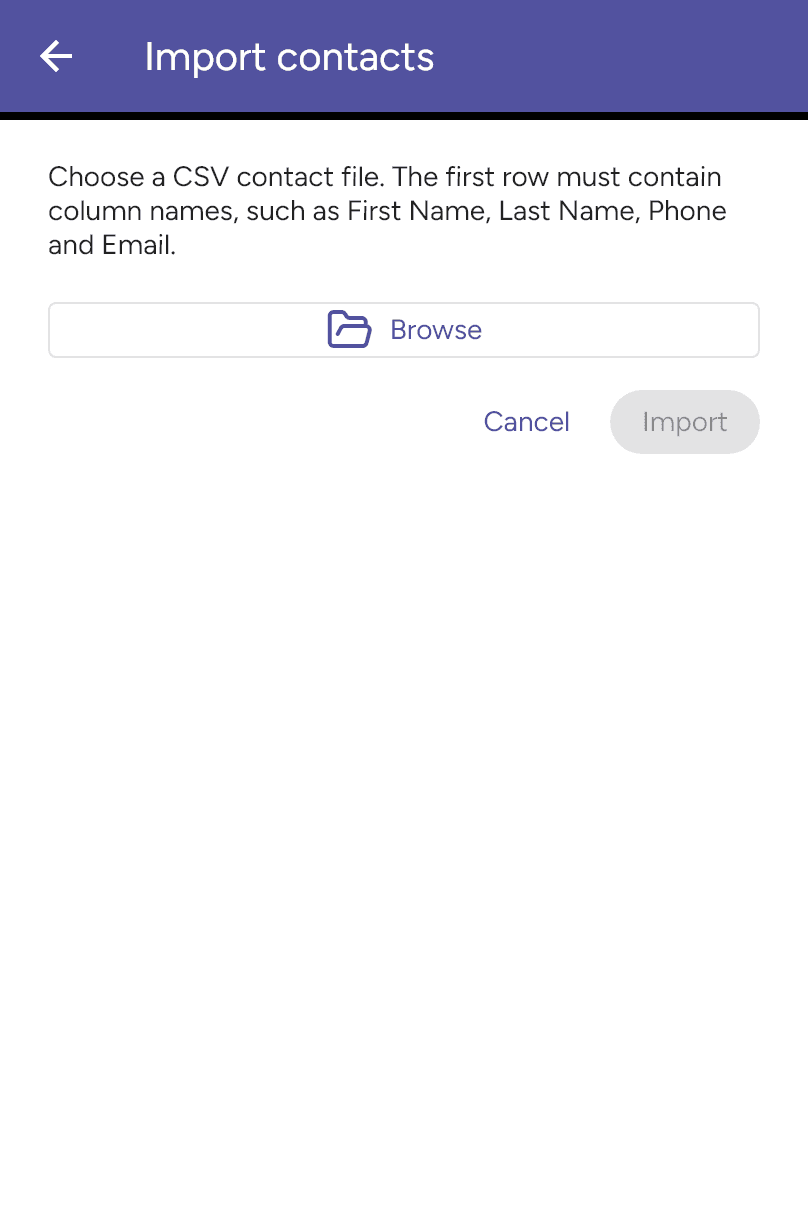
Review the preview before choosing Import. Leave Replace existing local contacts off to add the imported contacts alongside the existing ones.
If you enable replacement, the app asks you to confirm Replace local contacts?. Existing app contacts are removed after the file has been imported. Phone and portal contacts are kept. Check the result message before leaving the import screen.
Last updated on