Desktop Softphones
Understand SIP account details
Open Settings > Accounts and select the account. End any calls and disable the account before editing.
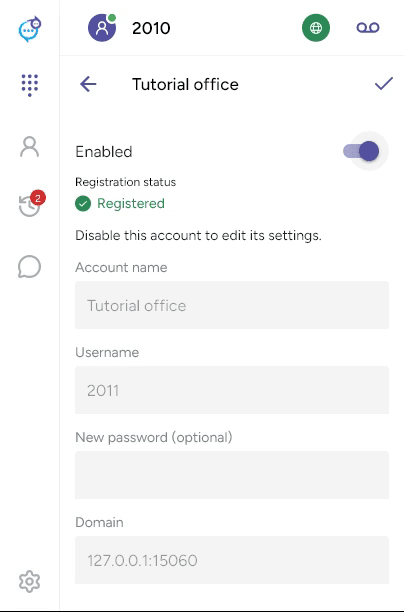
| Field | Purpose |
|---|---|
| Account name | A label for the account in the app. |
| Username | The SIP extension or user ID from your provider. |
| New password (optional) | Enter a replacement password, or leave blank to keep the saved password. |
| Domain | The SIP server address, including a port when required. |
| Enabled | Turns the account on or off. |
Registration status shows the current result. Registered means the account is connected to its SIP service.
Authentication username, display name and SIP proxy are in Advanced SIP settings > SIP identity. They are separate from the account name and username. Follow your provider’s instructions, then save with the checkmark and re-enable the account.
Last updated on