Add a SIP account
Open the menu at the top left of the main screen and choose Settings > Accounts.

Tap + at the top right of Accounts and choose SIP if an account-type menu appears. This opens SIP login. Account availability depends on the features enabled and your provider’s configuration.

Enter an Account name, Username, Password and Domain using the details supplied by your service provider. Open Advanced SIP settings if they require additional settings. Turn on Enabled when ready, then tap the checkmark to save.
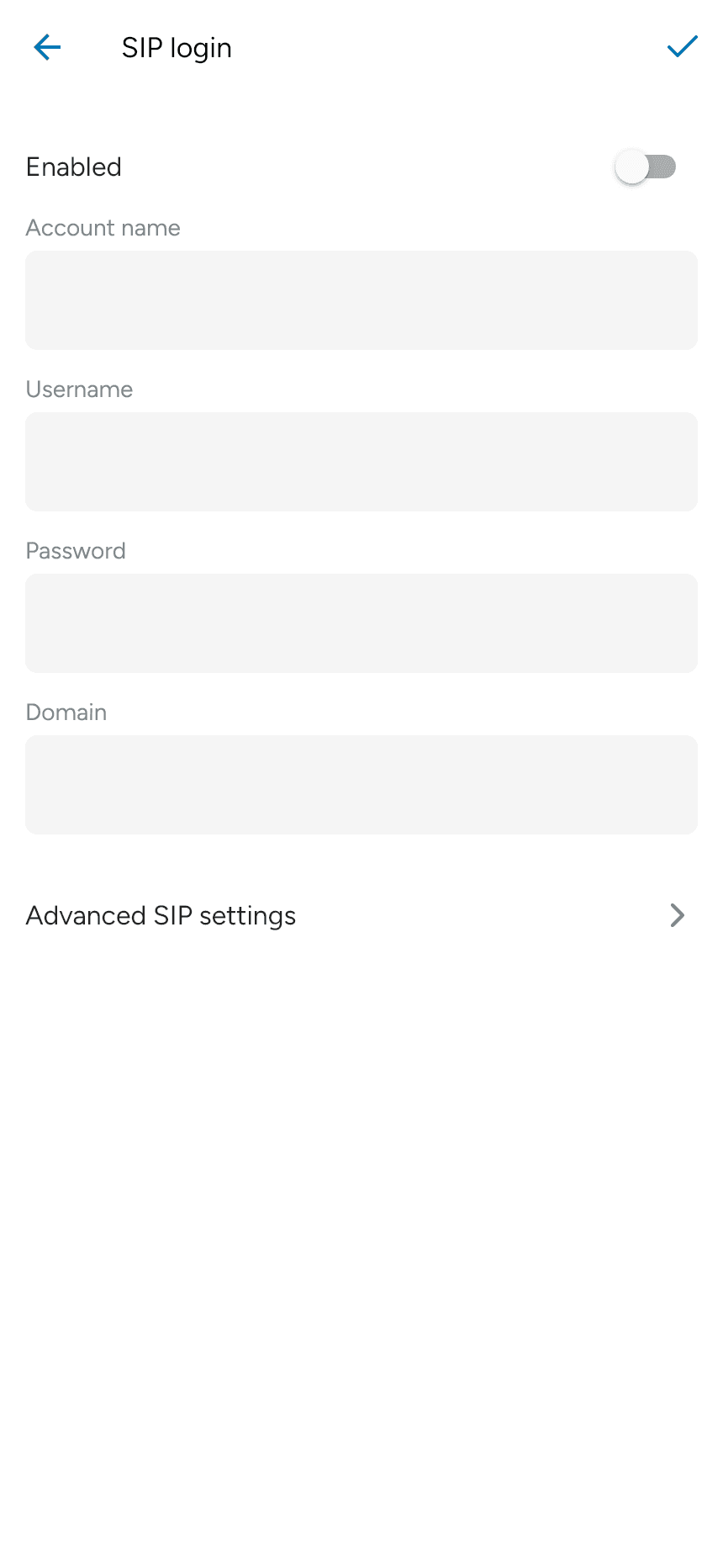
The account list shows registration status. If registration fails, check the credentials, server address and transport with your provider.
Edit an existing account
Tap the account in the list. An enabled account displays Disable this account to edit its settings. Turn off Enabled, make your changes, then enable the account again and save. Wait until your current call has ended before changing account settings.
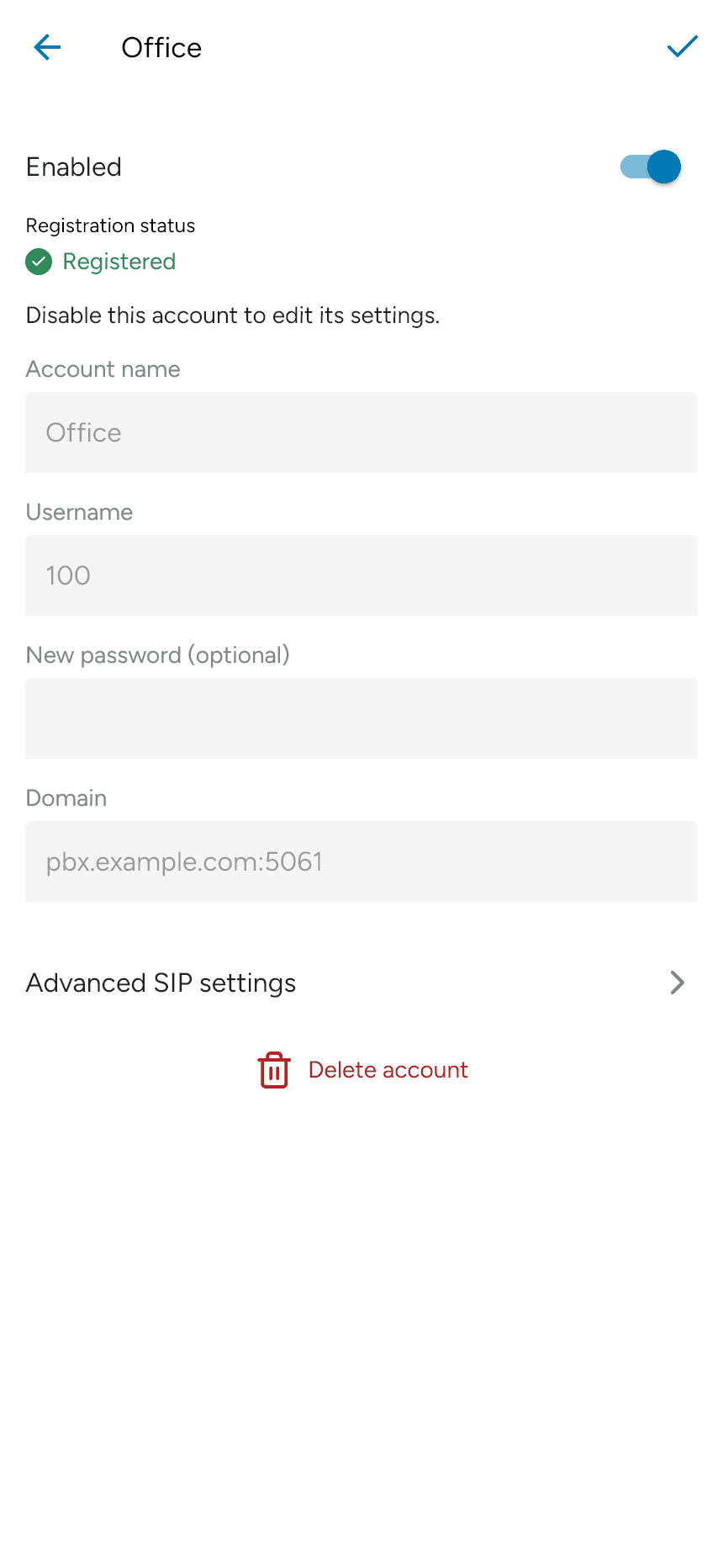
Use Delete account only when you want to remove it from the app.