Set up the desktop app
The desktop guides show the current app on Windows. Shared in-app steps also apply on macOS; installation, permissions and system dialogs differ. Your provider may use different colours or supply your accounts automatically.
SessionTalk Softphone
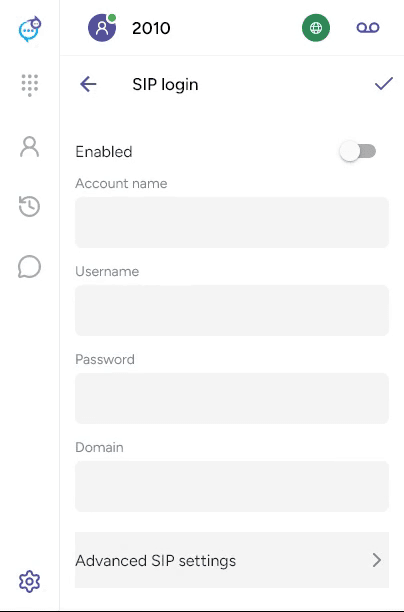
Have your SIP username, password and domain ready. These come from your phone service provider. Enter them in SIP login, choose an Account name, turn on Enabled and save with the checkmark. Use Advanced SIP settings if your provider supplies additional settings.
Provider-provisioned apps
If your app opens at Sign in, use the provider ID or email and any password supplied by your provider, then choose Continue. Follow the remaining prompts or open the setup link they supplied. The sign-in fields depend on your provider’s configuration.
Make your first call
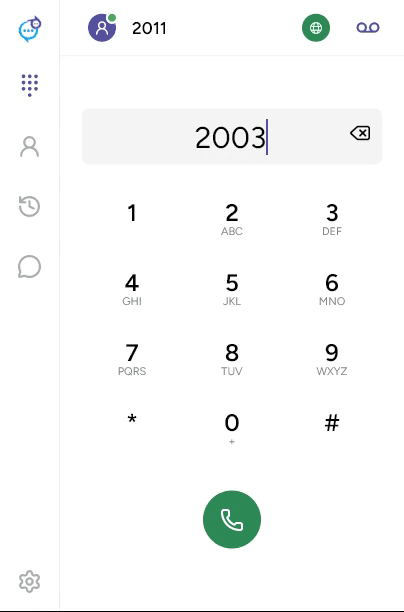
Open Settings > Accounts and check that the account is registered. Select Phone in the sidebar, enter a number and click the green phone button. Allow microphone access when prompted.
See Add an account and Place a call.