Transfer an answered call
Call transfer requires support from your SIP service and the relevant features enabled in the app.
Blind transfer
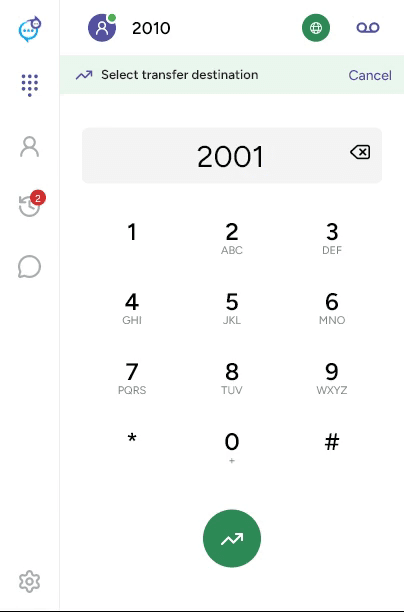
During a connected call, click Blind transfer, the single-arrow transfer control. The app displays Select transfer destination. Enter the number and click the green transfer button, or select a destination through Contacts or Recents. Use Cancel to leave transfer mode.
Attended transfer
Use Add call to ring the destination while the original caller is held. Speak to the destination, then use Attended transfer, the double-arrow control, to connect the calls. Follow any call-selection prompt. You can also use the attended-transfer control on the single-call screen to begin the consultation flow.
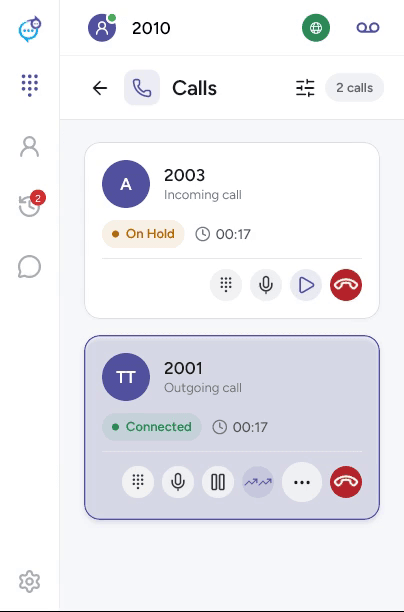
If the destination cannot take the call, end the consultation call and resume the original caller. For a call still ringing, use Forward a call.