Troubleshoot IM notifications
Background IM alerts require a compatible XMPP push service and notification permission. Your provider controls server support; a working foreground conversation alone does not prove push is configured.
Check the account
Open Menu > Settings > Accounts, select the account under XMPP, and check Enabled, Connection status and Enable push notifications. Save any changes.
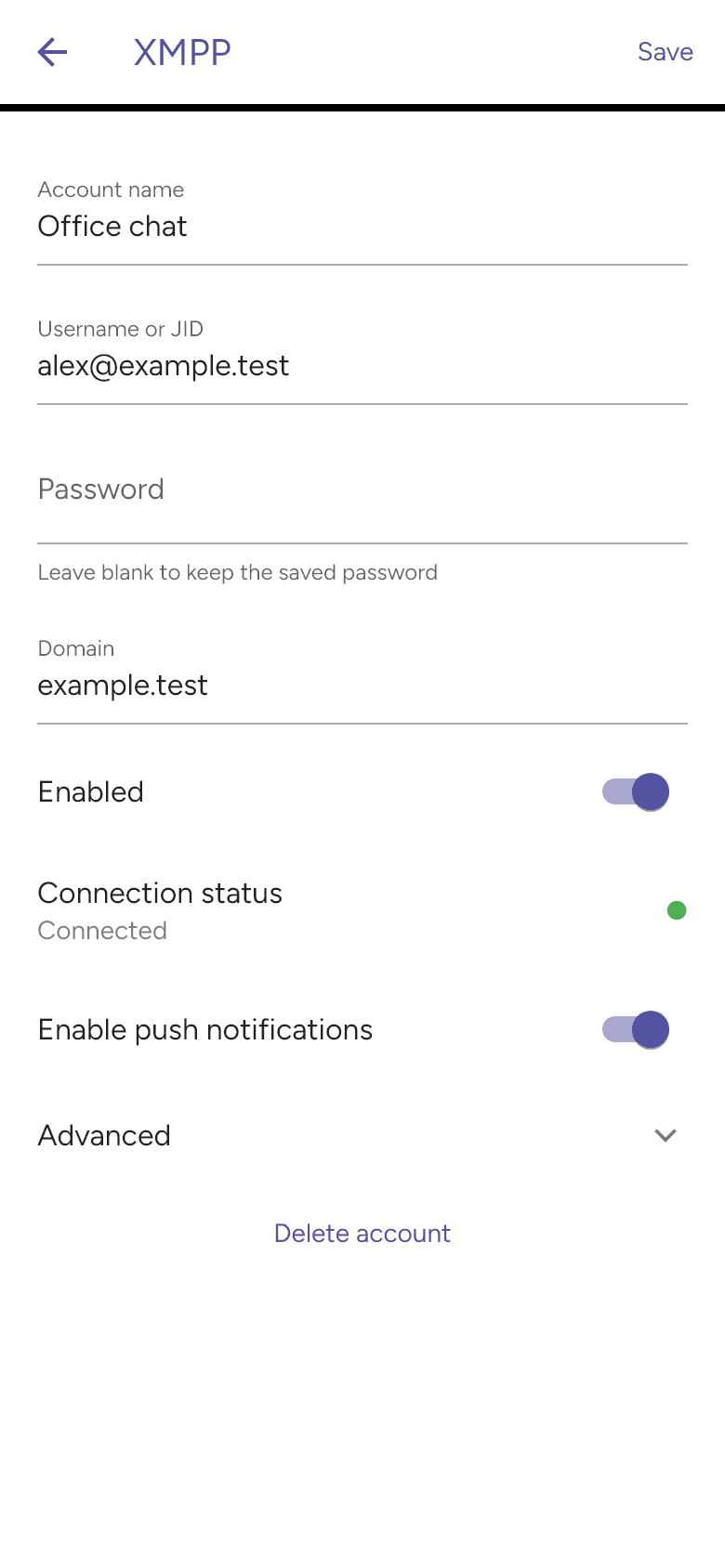
An empty IM conversation list is not a connection test. See Set up IM if the account fails to connect.
Check phone settings
Open Menu > Settings > Permissions to review notification access. Allow notifications in the phone’s system settings if they were denied. Also check Focus or Do Not Disturb and Android battery/background restrictions. Exact system menus vary by phone and OS version.
For sounds, open Menu > Settings > Preferences > Alerts and sounds, enable Message sounds and save. That switch does not grant notification permission.
Test delivery
Background the app and ask a colleague to send a message. Open the app to check the conversation. If messages arrive only while it is open, give your provider the time of the test, account and connection status so they can check push delivery.
Other signed-in devices, server routing and archive support can affect delivery and history synchronisation. Message previews also depend on your phone’s privacy settings; do not assume every device will receive an alert for every message.