Desktop Softphones
Add a SIP account
Open Settings using the cog at the bottom of the sidebar, then choose Accounts. Click + and choose SIP if an account-type menu appears.
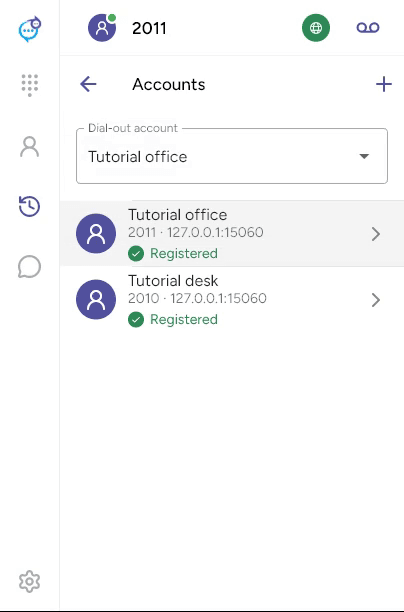
Enter the Account name, Username, Password and Domain supplied by your phone service provider. The account name is your own label. Open Advanced SIP settings if your provider requires an authentication username, proxy or a particular transport.
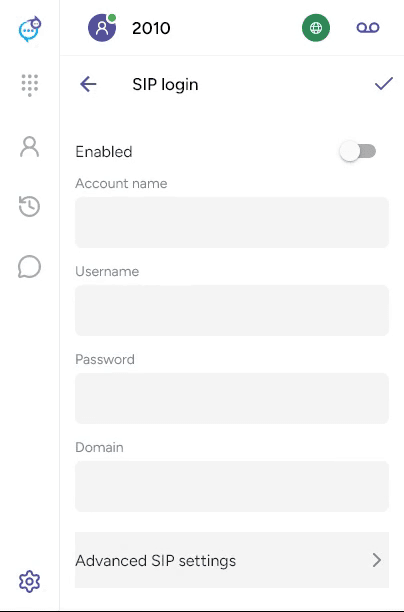
Turn on Enabled and click the checkmark to save. Return to Accounts and check for Registered. Example numbers and server addresses in these guides belong to a test setup; use your own provider’s details.
To edit an existing account, end any calls, open the account and turn off Enabled. Make your changes, save and re-enable it. See Account details.
Last updated on