Send IM messages
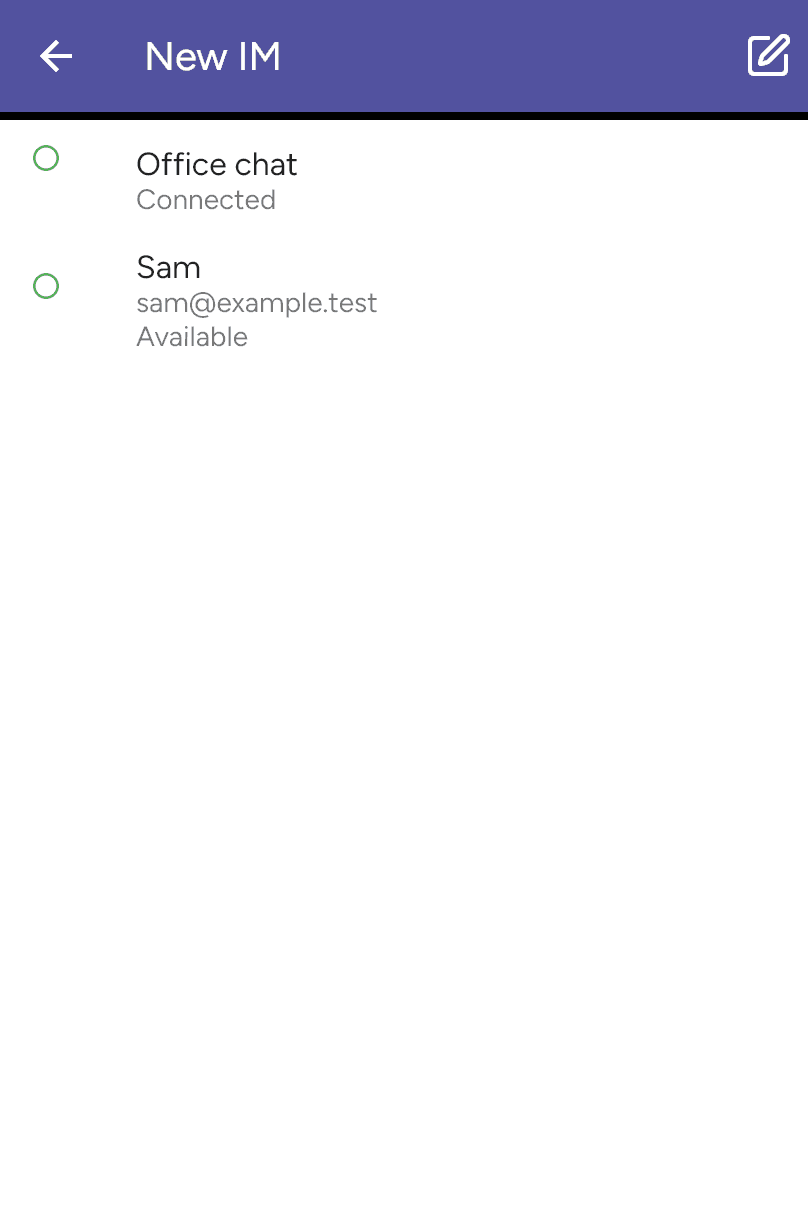
Open Messages in the sidebar. Choose + > New IM and select an XMPP buddy. The New IM screen shows your accounts and their connection status. Use its New message button to enter a recipient address when needed.
Write and send
Type in Message, then click the send arrow. The emoji button, when shown, adds an emoji to your message text.
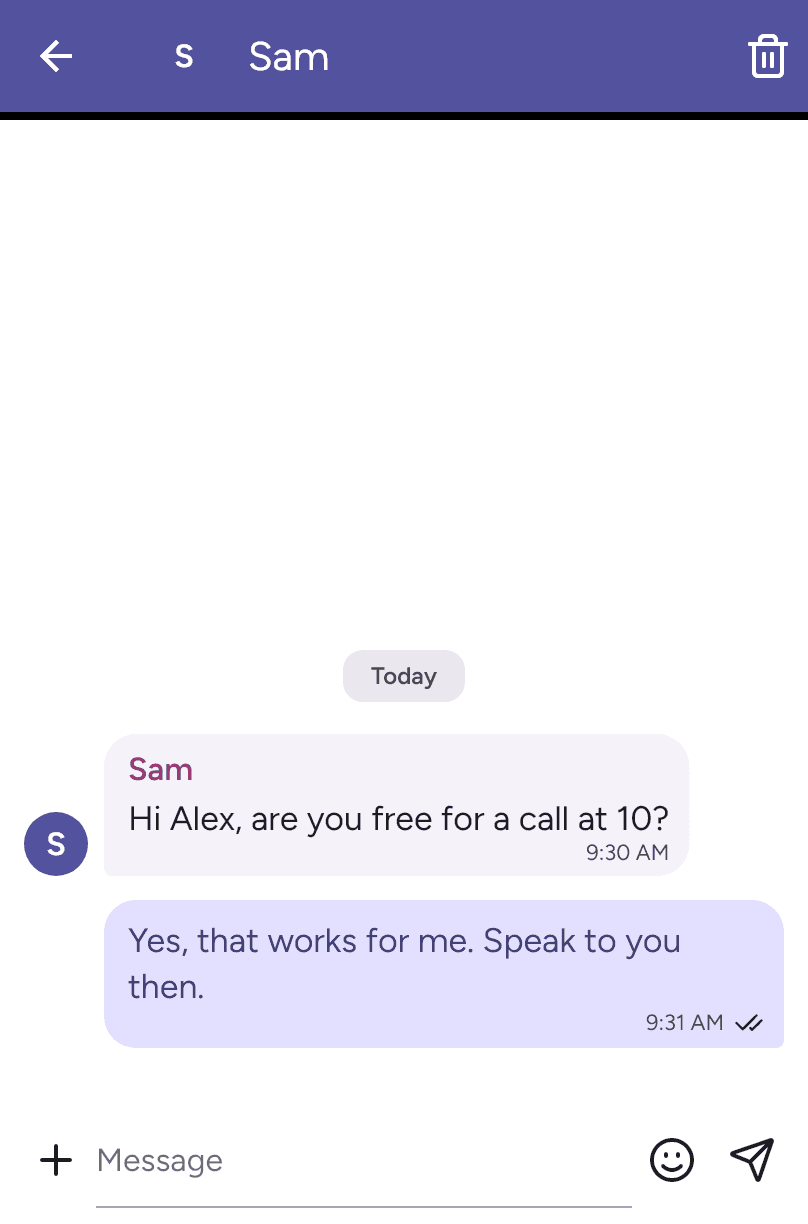
On Windows, Enter sends and Shift+Enter inserts a new line. Delivery indicators depend on server acknowledgements; they do not prove the recipient has read the message.
Send a photo, video or file
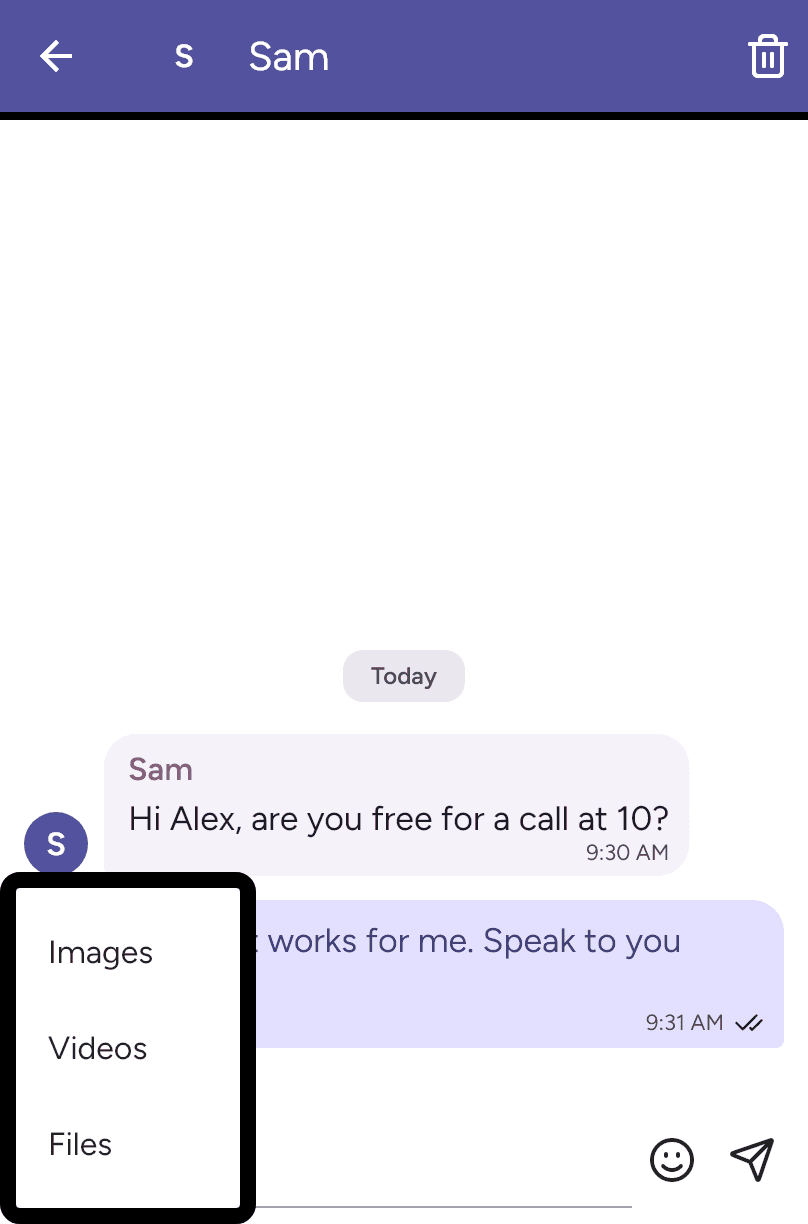
Click Add attachments (+) and choose Images, Videos or Files. Select an attachment, add an optional message and press Send. Selecting a file prepares a draft; the upload begins when you send it. Send one attachment at a time.
Use the remove control to discard a draft attachment, or Cancel upload while an upload is in progress. Attachment support and limits depend on your service.
Open a received attachment to view it. The download icon is Save attachment and becomes available once the file is ready. The destination or save dialog depends on your device. Use the close button to return to the conversation.
Copy or delete
Right-click a message to Copy text or Delete it. Deleting asks for confirmation and removes the message on this device.
The trash button at the top deletes the local conversation history after confirmation. It does not delete another person’s copy or remove the buddy. Server archive availability and synchronisation depend on your provider; do not treat the chat history as a guaranteed backup.