Set up IM
XMPP provides instant messaging, presence and rooms through a compatible chat service. It is separate from SIP messaging. You need an XMPP address (JID), password and service domain from your provider. Premium features may need to be enabled; provider-provisioned apps can supply or restrict these settings.
Add an IM account
Open Settings > Accounts, choose + and select XMPP when the account-type menu is shown. Enter Account name, Username or JID, Password and Domain. Turn on Enabled and choose Save.
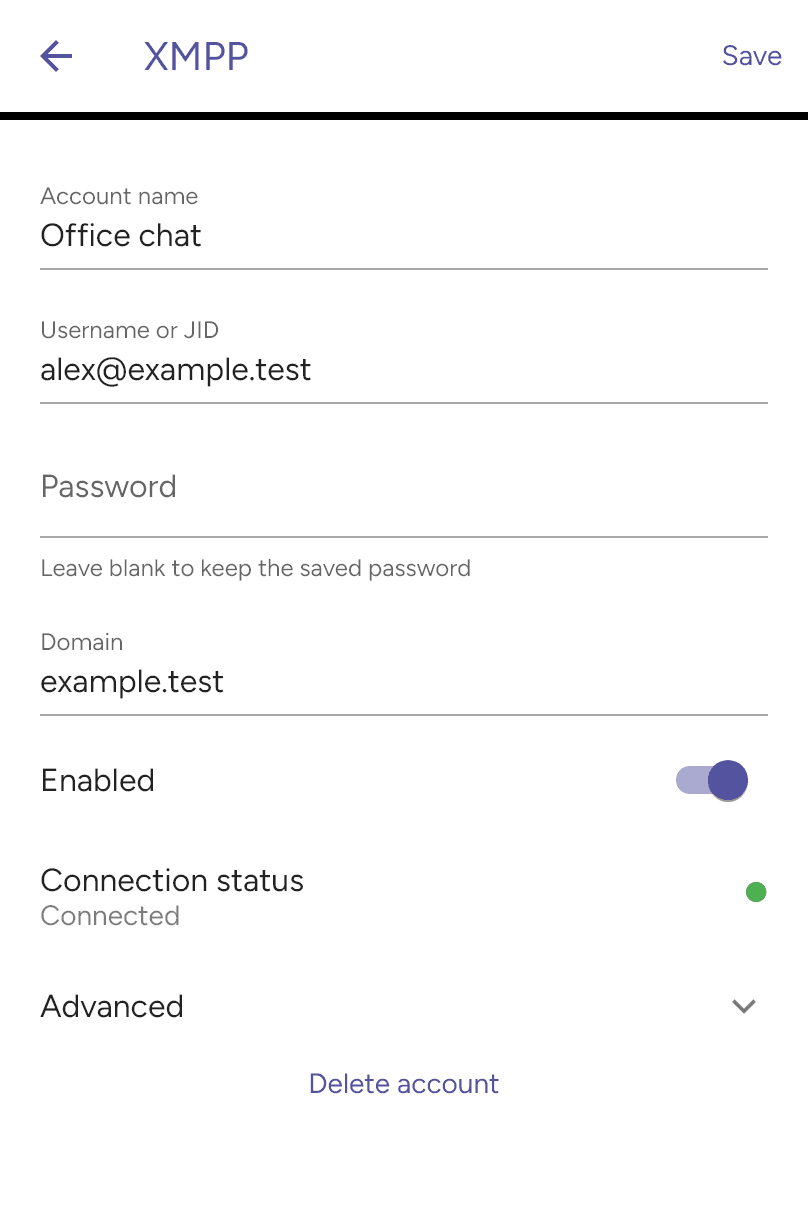
The example shows a saved account. When editing, leave the password blank to keep the saved password. Turn Enabled off to disconnect the account without deleting it.
Advanced connection settings
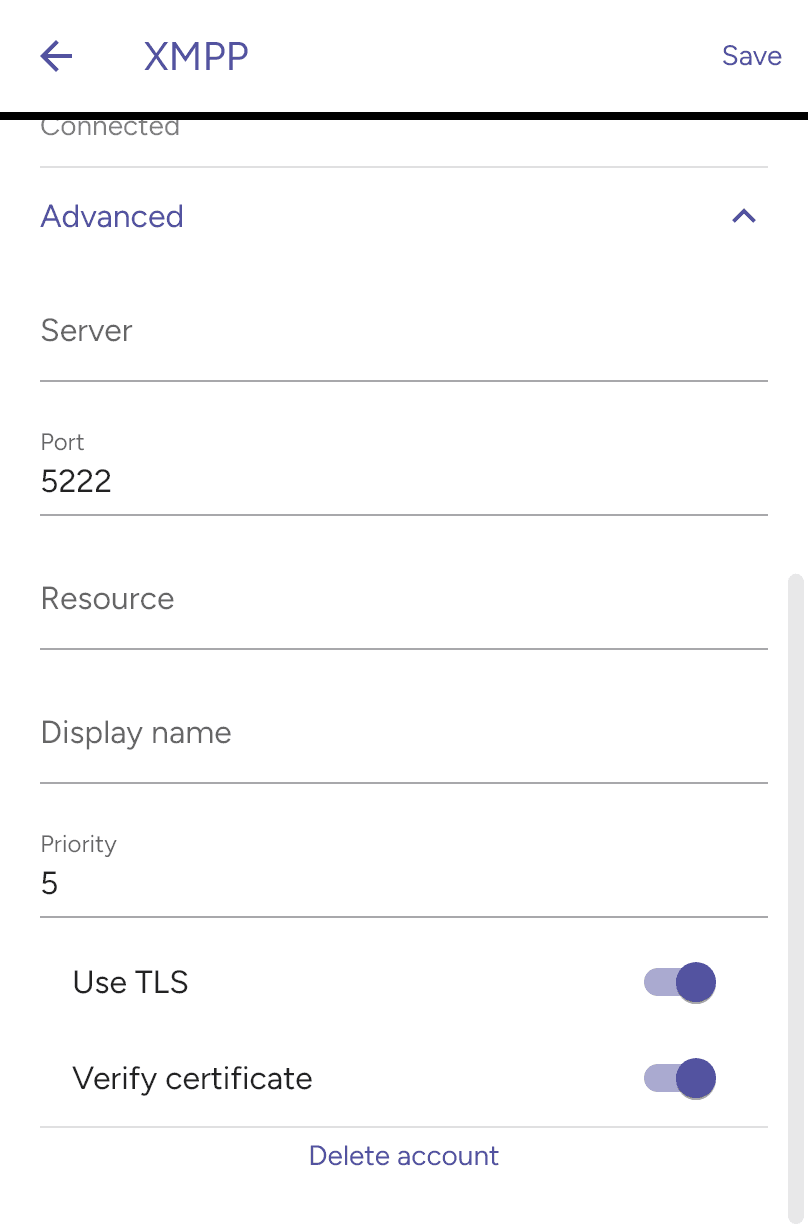
Expand Advanced for Server, Port, Resource, Display name, Priority, Use TLS and Verify certificate. Use the values supplied by your provider. A server override may differ from the domain in your JID.
Check the connection
Reopen the account under XMPP in Accounts and check Connection status. If it does not connect, verify the enabled switch, credentials, domain, server and network access. Give the displayed error to your provider if you need help.
An empty Messages list does not mean the connection has failed; it may simply have no conversations yet. See Sending IM messages.
Delete account asks for confirmation and retains saved conversations on the device. It does not delete the account from your provider’s server.