Control sounds and notifications
Silence app sounds
Open Menu > Settings > Preferences > Alerts and sounds.
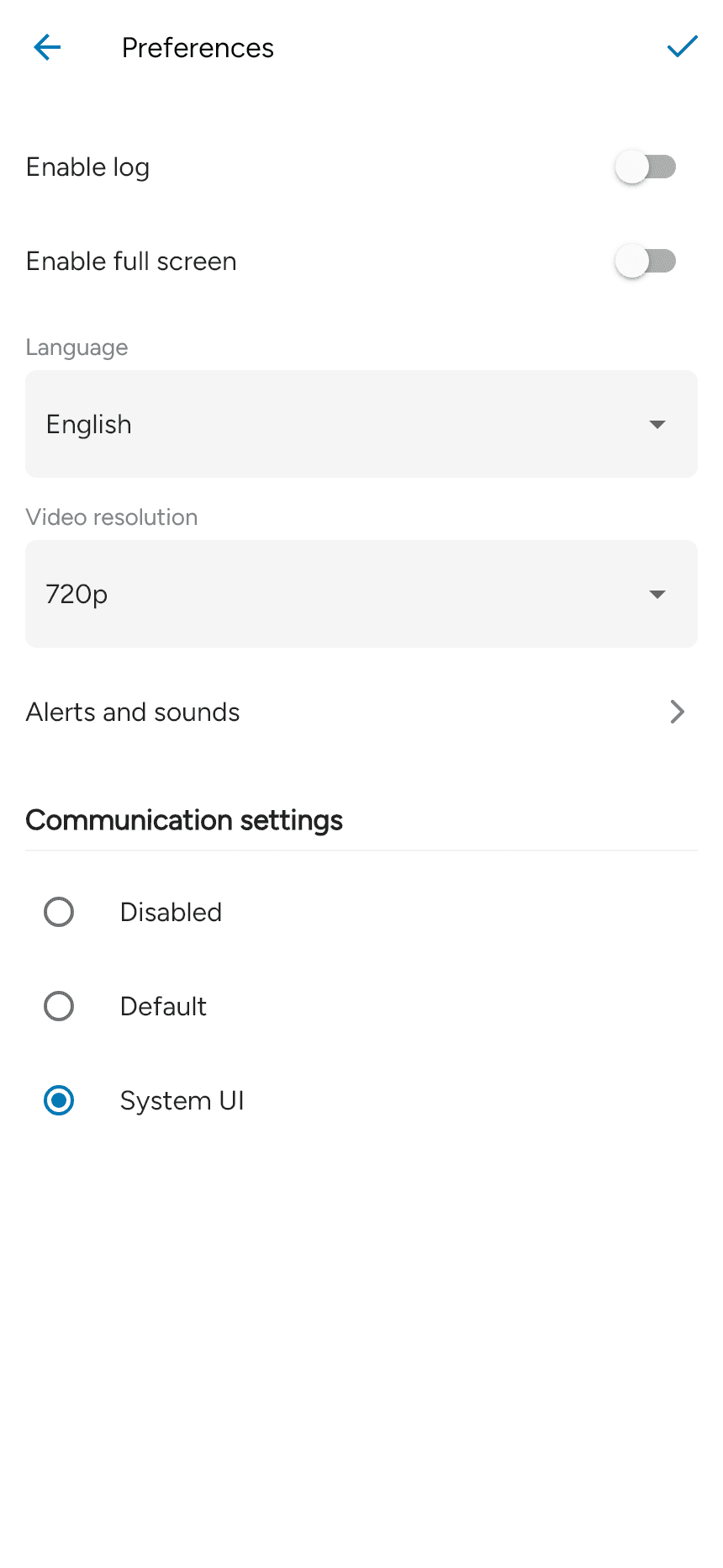
Turn off the sounds you do not want: Incoming call sounds, Message sounds or Call waiting sounds. Tap the checkmark to save. Call waiting sounds alert you to another incoming call while you are already on a call.

These switches control sounds, not the phone’s notification permission.
Change system notifications
Open your phone’s system settings, select the app, and change its notification settings. Android notification categories and iPhone notification controls vary by OS version. Disabling notifications can prevent incoming-call or message alerts from appearing.
The app’s Menu > Settings > Permissions page shows the current notification permission and provides an action when access needs to be granted. See Permissions.