Manage IM buddies and presence
Open Contacts > Buddies and use the add-buddy button. Select the Account, enter a Display name and XMPP address, then save with the checkmark. For a SIP account the address field is SIP address or extension instead.

Presence may require the other person to approve your subscription. Awaiting approval, Not subscribed or Presence request describes the subscription state; it is not proof the person is offline. Use the available Accept or Decline action for a request.
To edit a buddy, use their available edit action. Deleting a buddy asks for confirmation. It is separate from deleting a conversation.
Change your presence
Open the main menu and tap your user/presence entry to open Presence status. Choose one of:
| Status | Colour |
|---|---|
| Available | Green |
| Away | Orange |
| Busy | Red |
| On the Phone | Red |
| Do Not Disturb | Purple |
| Offline | Grey |
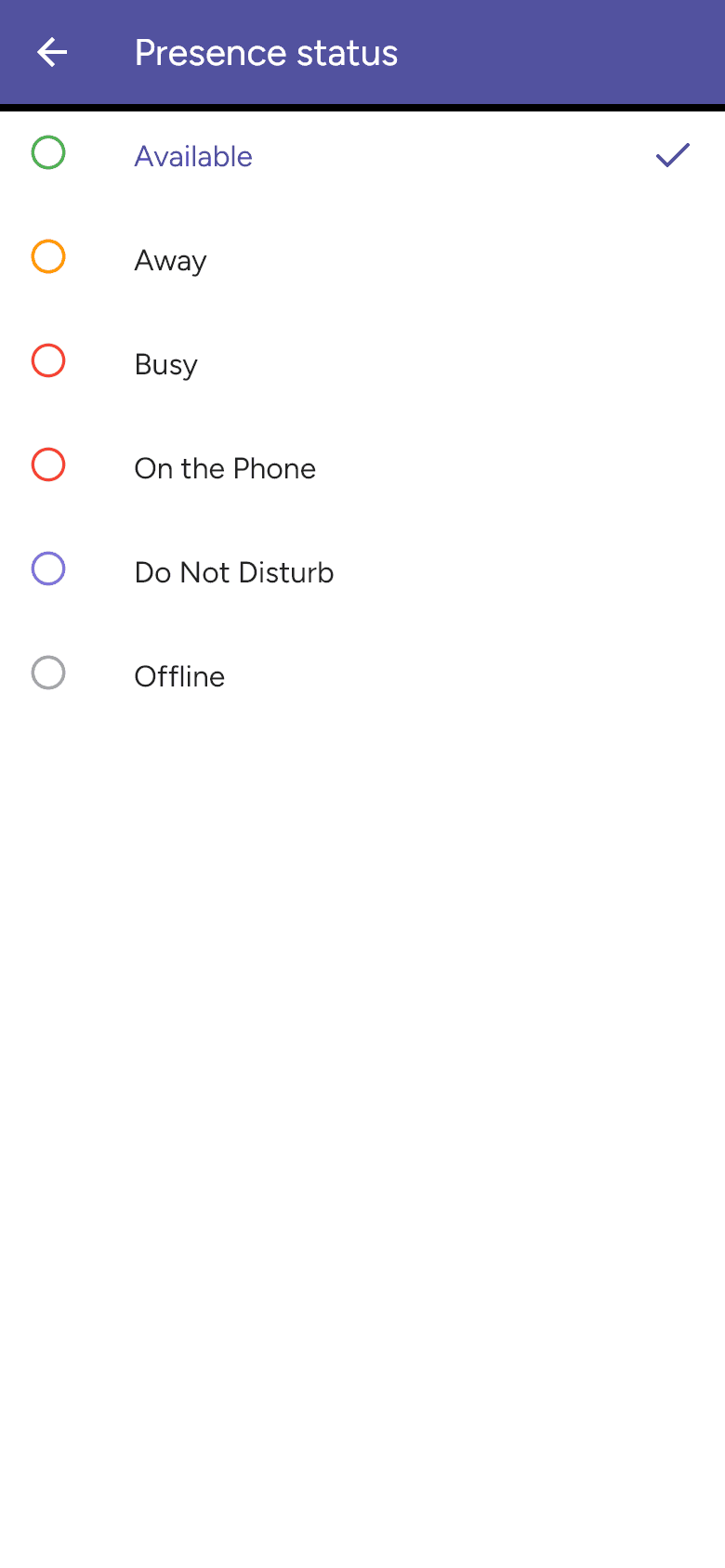
Your status is sent through eligible connected SIP and XMPP accounts. A buddy’s displayed state also depends on the server and subscription. Phone or computer Focus/Do Not Disturb settings control system alerts separately; see IM notifications.