Use IM rooms
Rooms are group conversations provided by an XMPP service. Set up IM first. Your server controls room availability and permissions.
Create a room
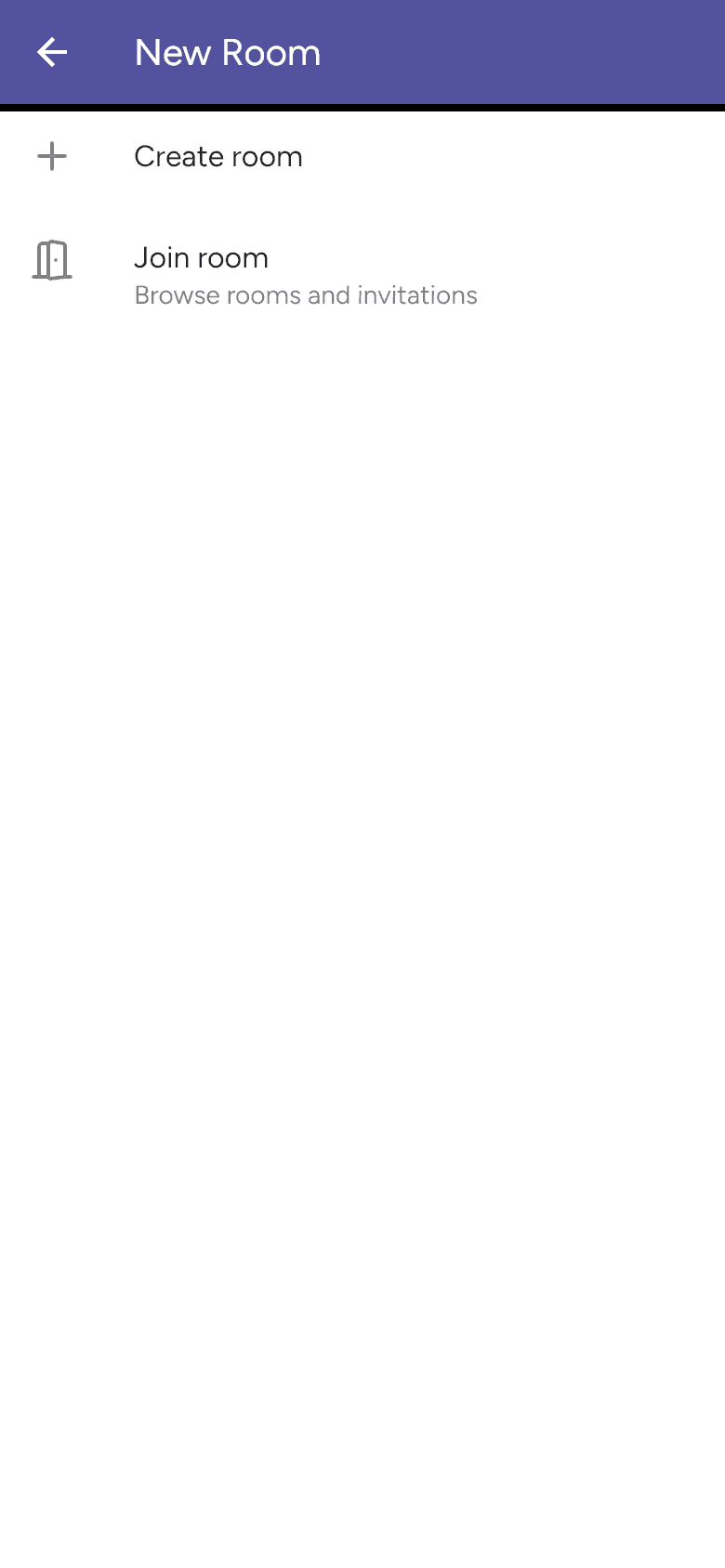
Open Messages > + > New Room. Choose the XMPP account if prompted, then Create room.
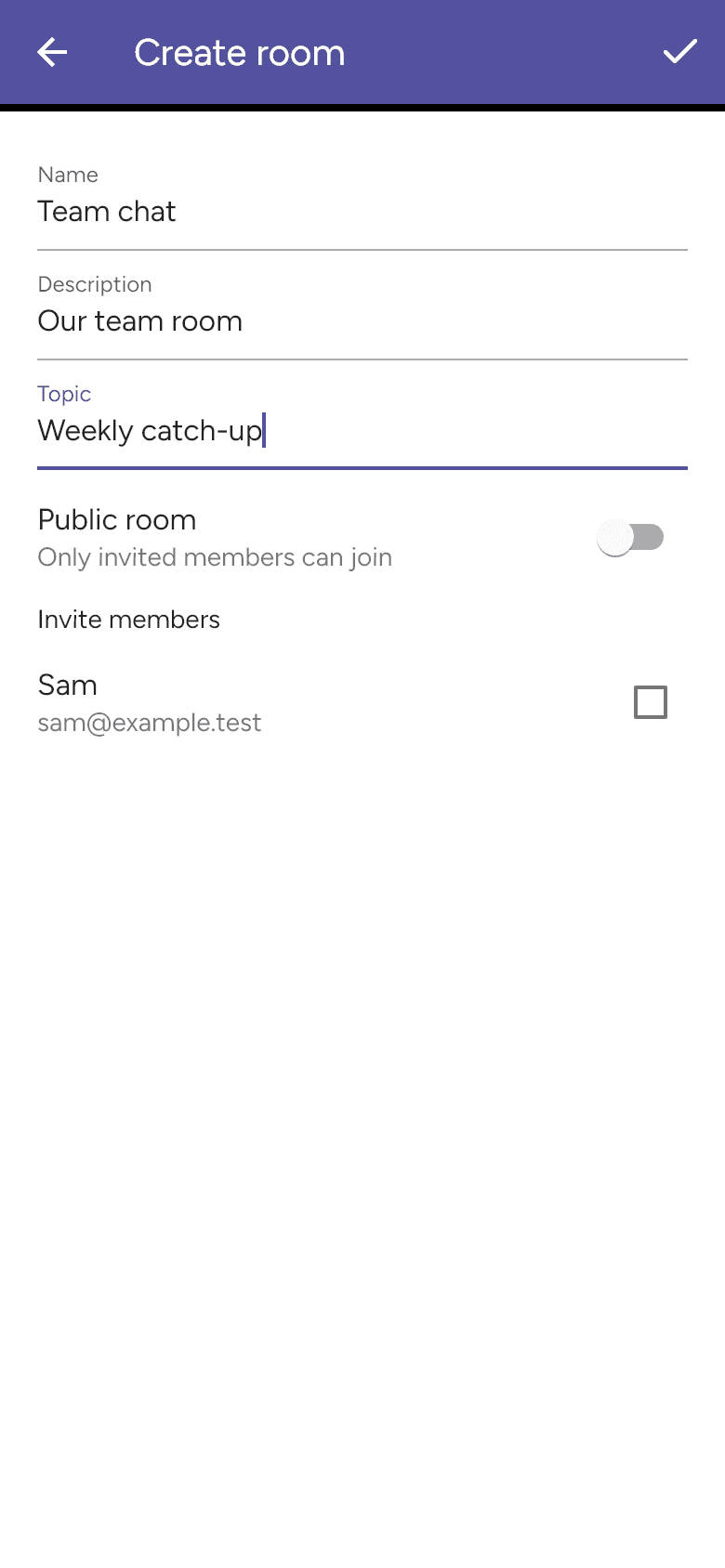
Enter a Name, optional Description and Topic. Leave Public room on for a room visible in the directory, or turn it off for invited members. For a private room, select buddies under Invite members. Use the checkmark to create it.
Join a room
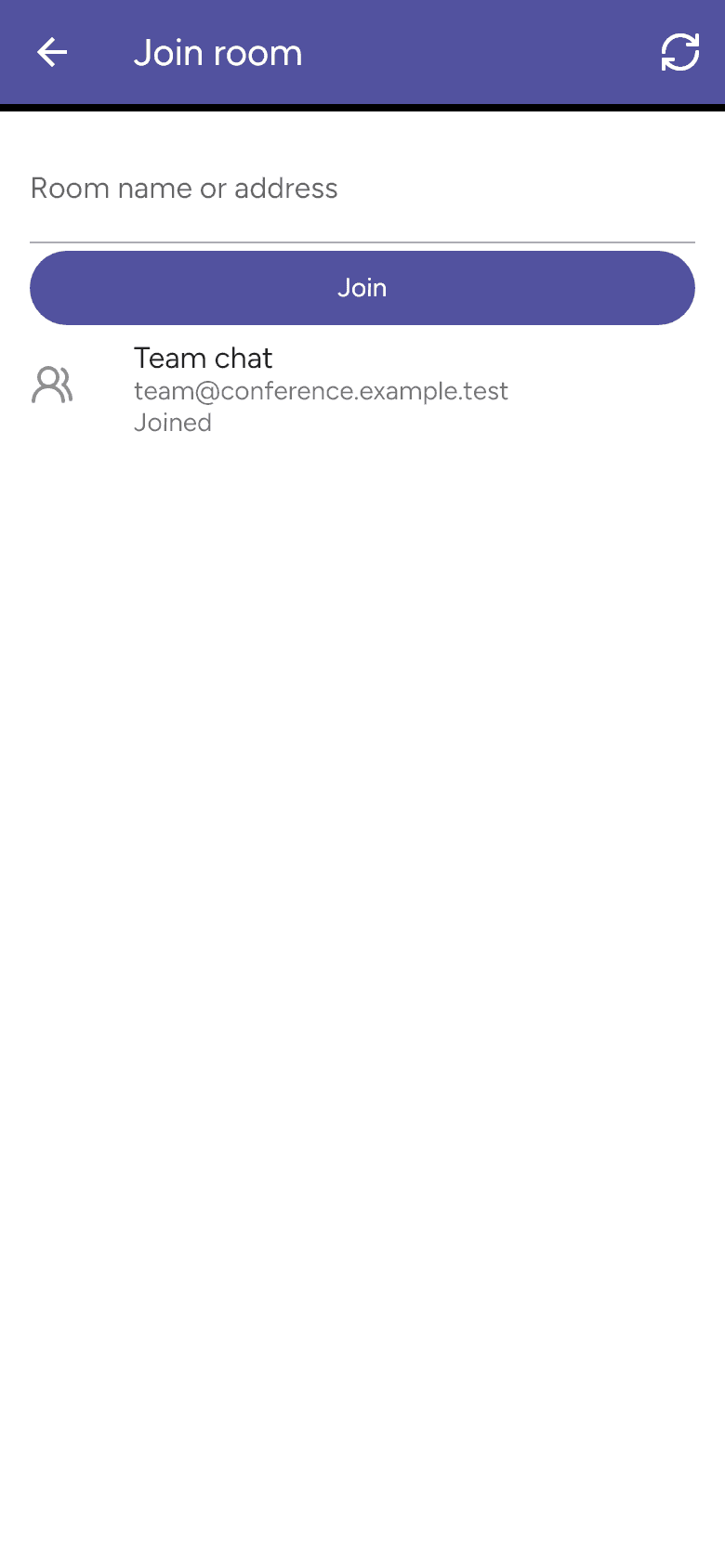
Choose New Room > Join room to browse rooms and invitations. Use Room name or address to find or enter a room. Select a listed room or use Join. An invitation can be declined using its decline control.
Room details and members
Open the room conversation and use Room details at the top. The page shows its address, topic, status and members. Use Invite member to invite a buddy where supported.
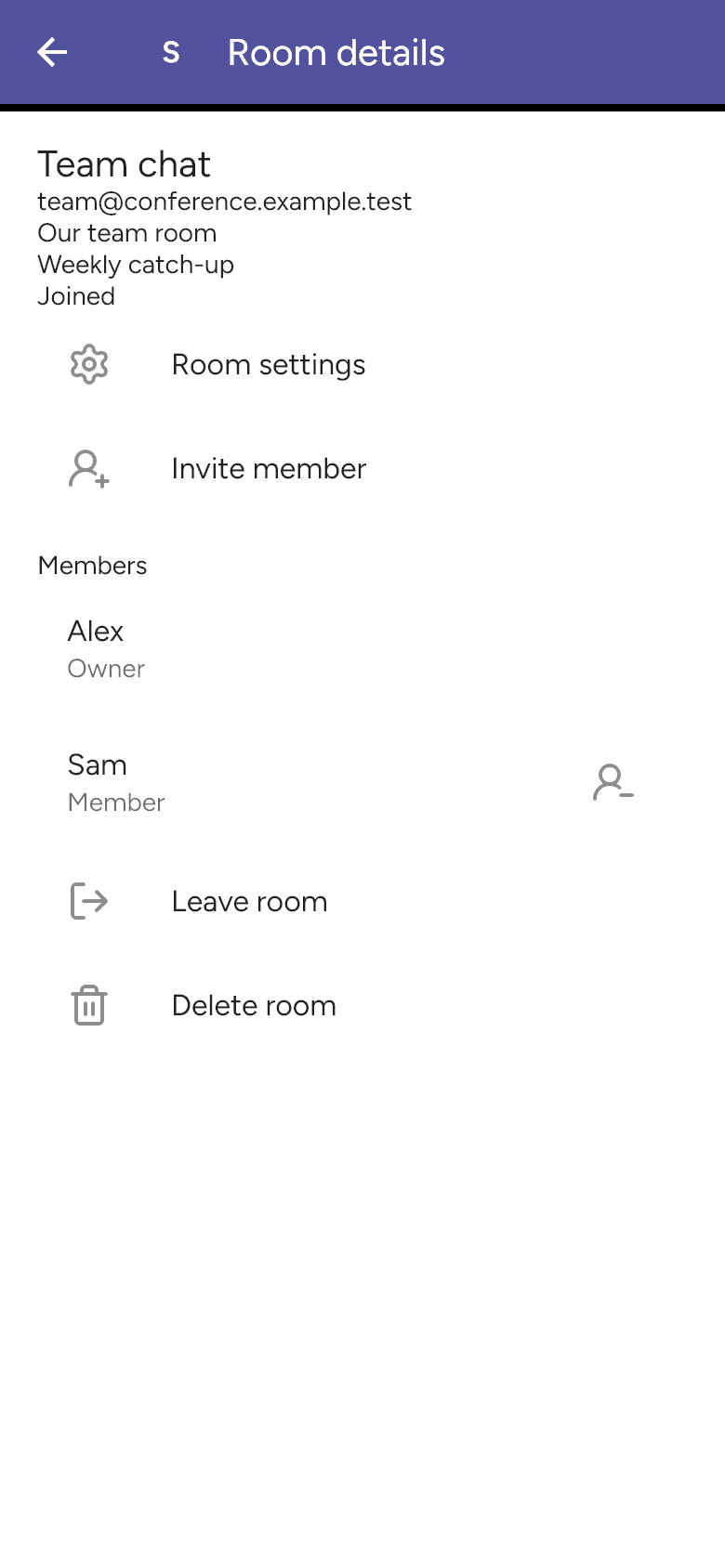
Owners can open Room settings to change the name, description, topic or public setting. Owners and admins can remove members with lower privileges; the app asks for confirmation.
Leave or delete a room
Leave room asks you to confirm before leaving. Whether you can rejoin depends on the room’s access rules.
Only the owner sees Delete room. It asks Delete this room for everyone? before sending the deletion request. Use Cancel to keep the room or Confirm to proceed. This differs from deleting local conversation history with the chat’s trash button.