Create and edit contacts
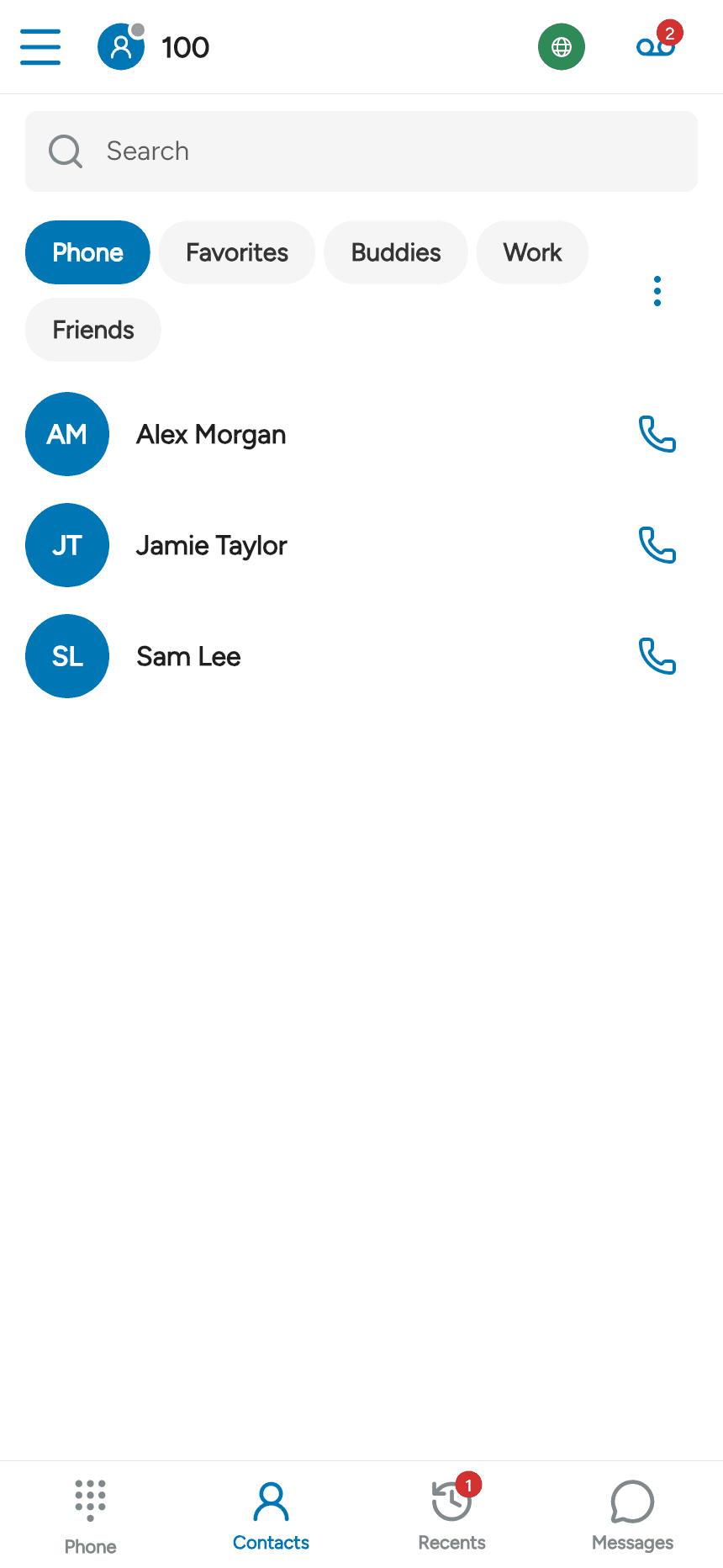
Open Contacts in the bottom tab bar. The Phone tab displays contacts from your device when contact permission is granted. Manage those contacts in your phone’s Contacts app. The other tabs show app favourites, buddies and contact groups where available.
Add an app contact
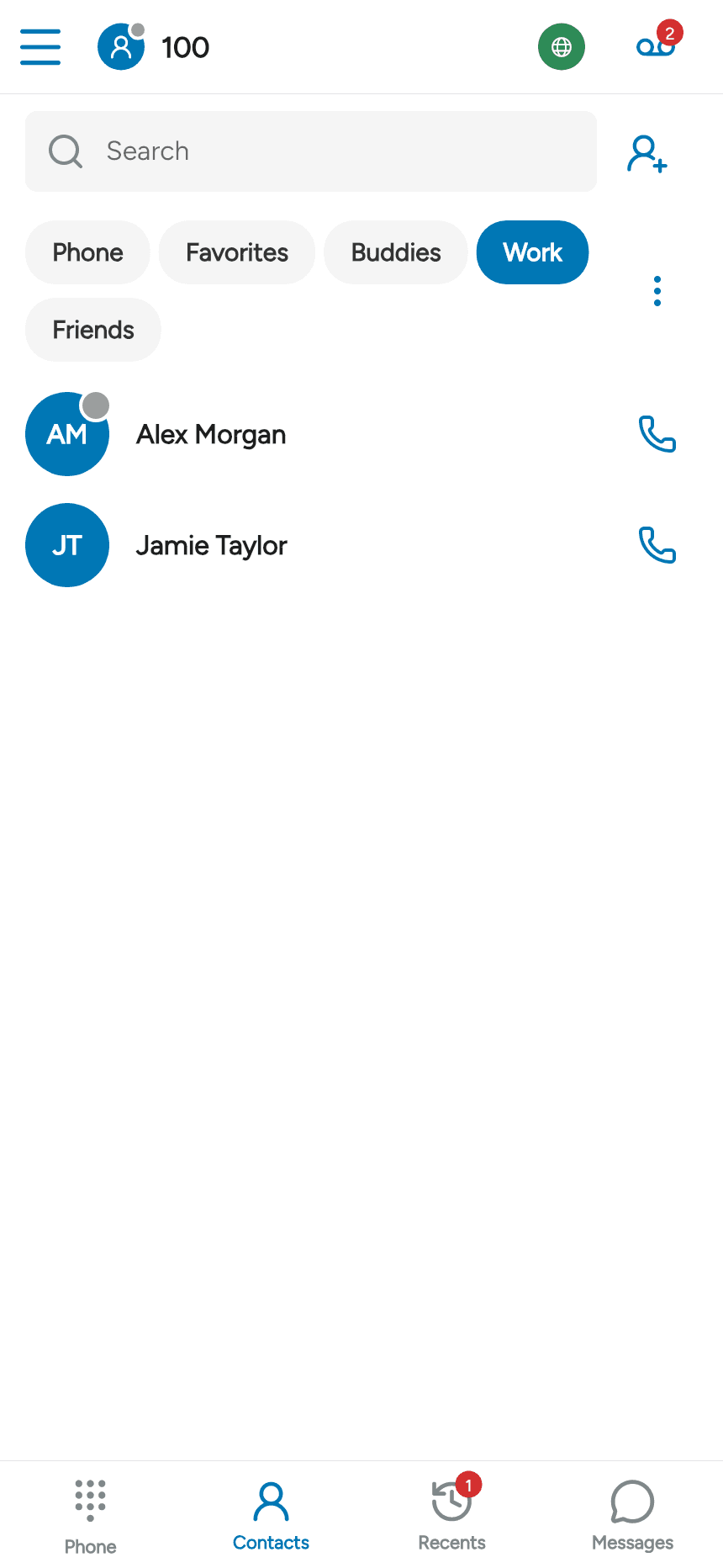
Select an app contact group, such as Work, then tap the add-contact icon beside Search. If you do not have a group yet, create one. The add button changes with the selected tab: Favorites adds a favourite and Buddies adds a messaging buddy.
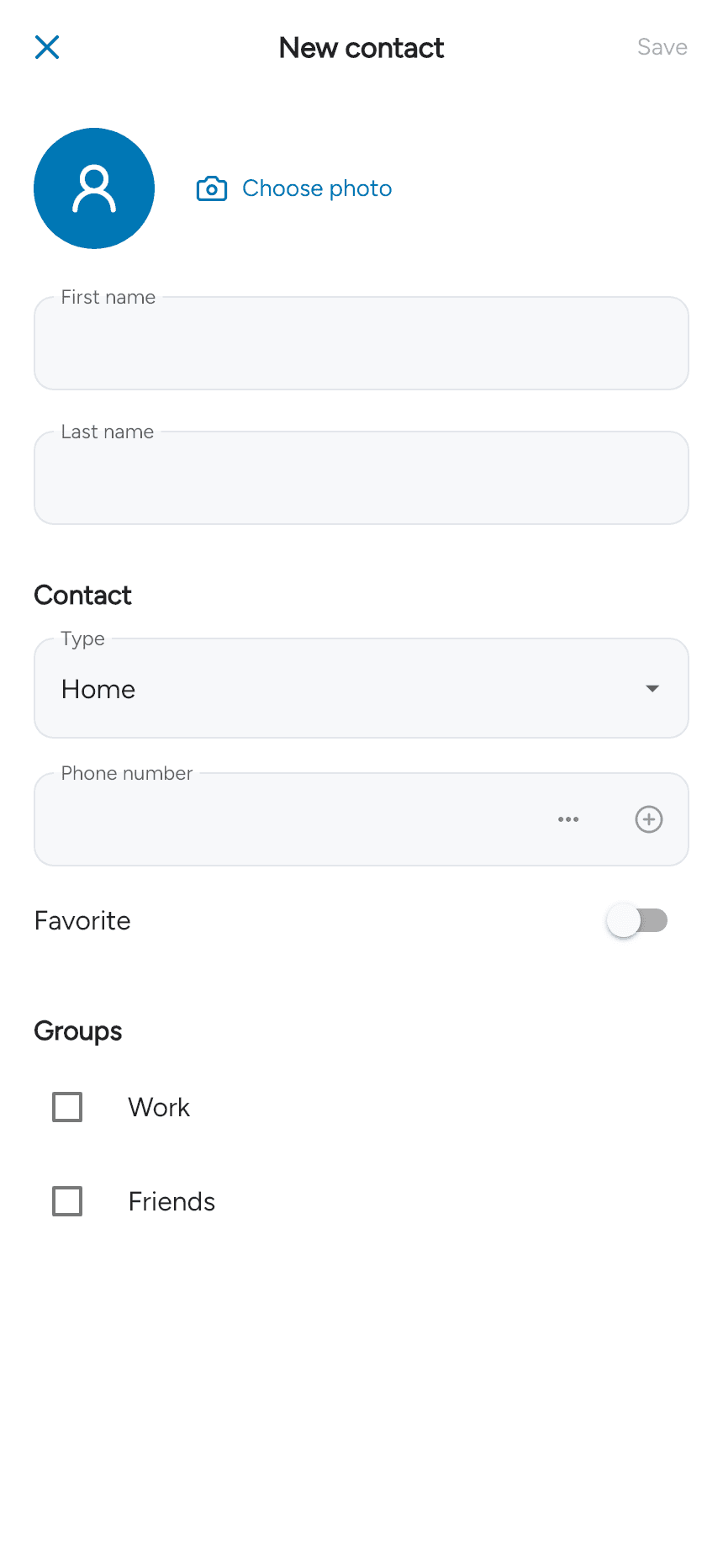
Enter a first or last name. Choose a contact Type, enter a phone number or other detail, and tap + to add it. Repeat for additional details. Use Choose photo to add a picture, then tap Save.
Edit details and groups
Open an app contact and tap the pencil icon. Update its details, select a main number if needed, and use the minus button beside a detail to remove it.
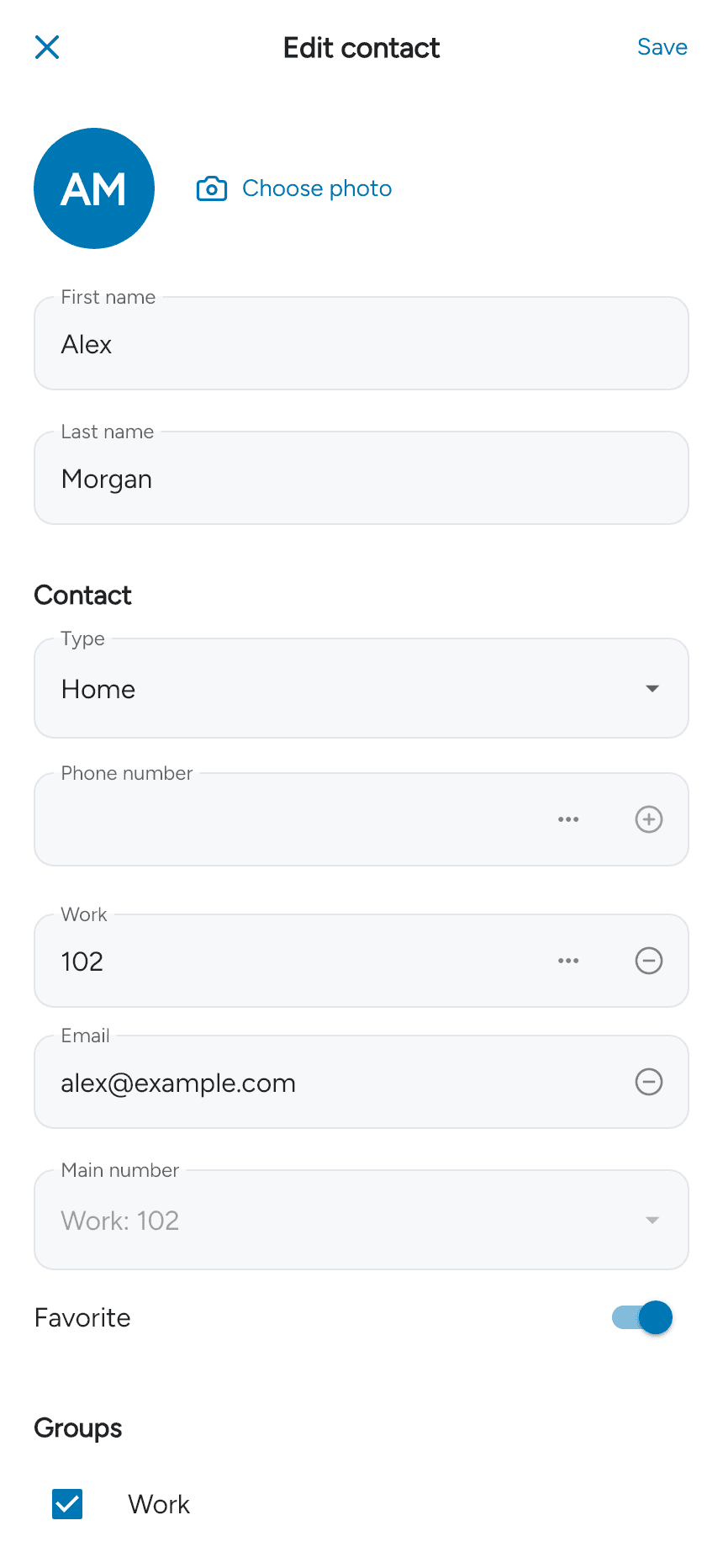
Scroll down to set Favorite or select the contact’s Groups, then tap Save.
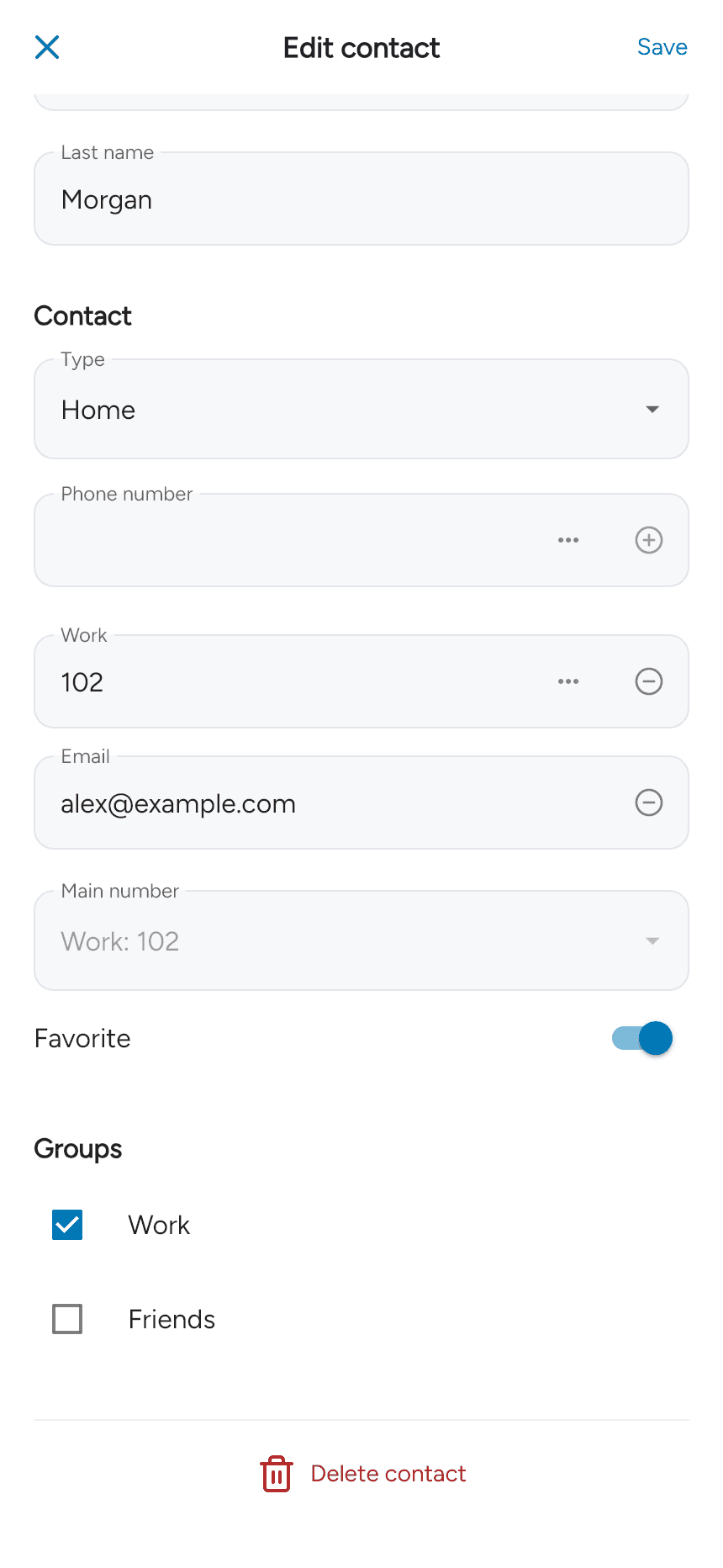
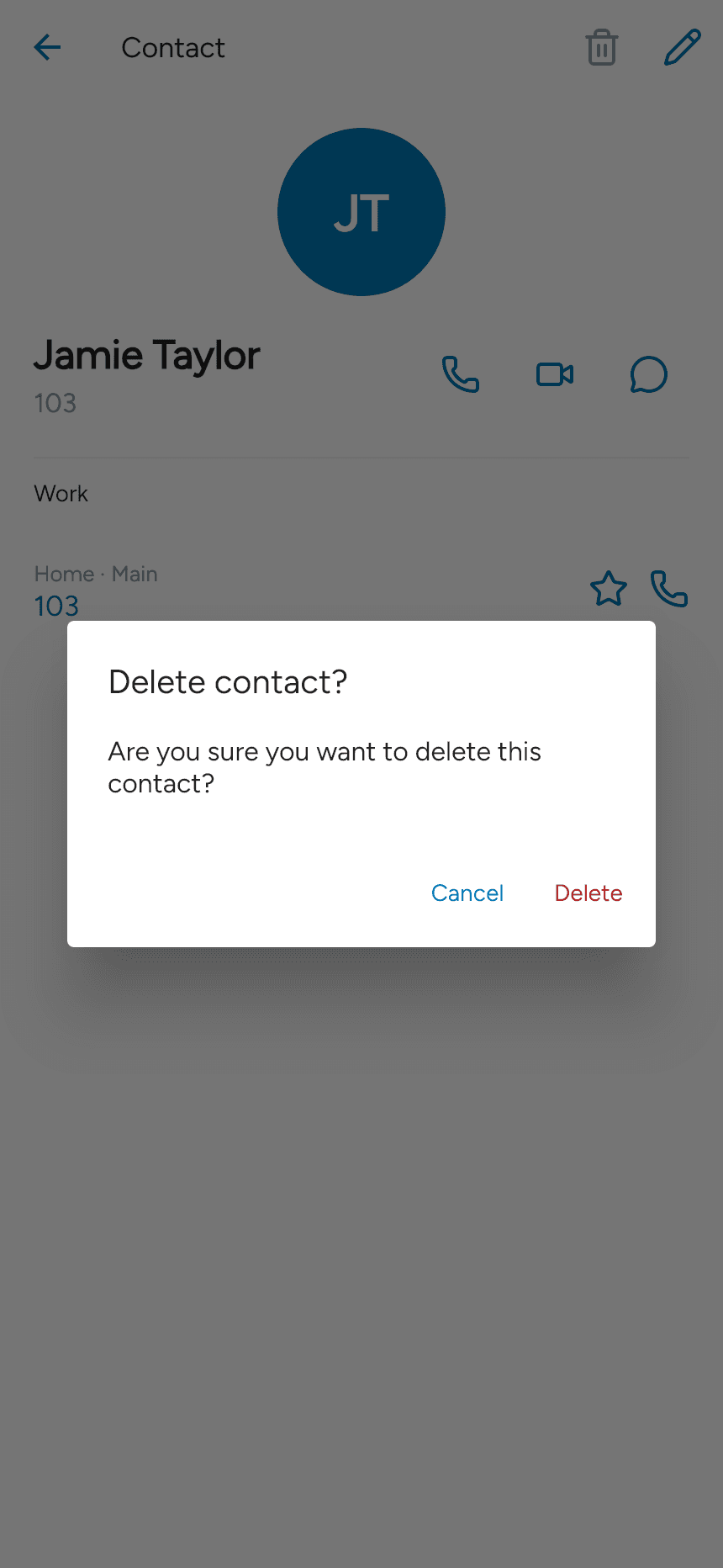
Delete an app contact
Open its details, tap the trash icon and confirm Delete. Provider directory entries and phone contacts may have different editing controls.