XMPP & Messaging
Open Provisioning > Advanced > Messaging in the SessionCloud portal to enable messaging and presence for your softphone. This page also contains the XMPP server settings. Users can enter their JID and password in the softphone, or you can include their account details in External Provisioning.
The page is split into three sections: Busy Lamp Field (BLF), Messaging Features, and XMPP Settings.
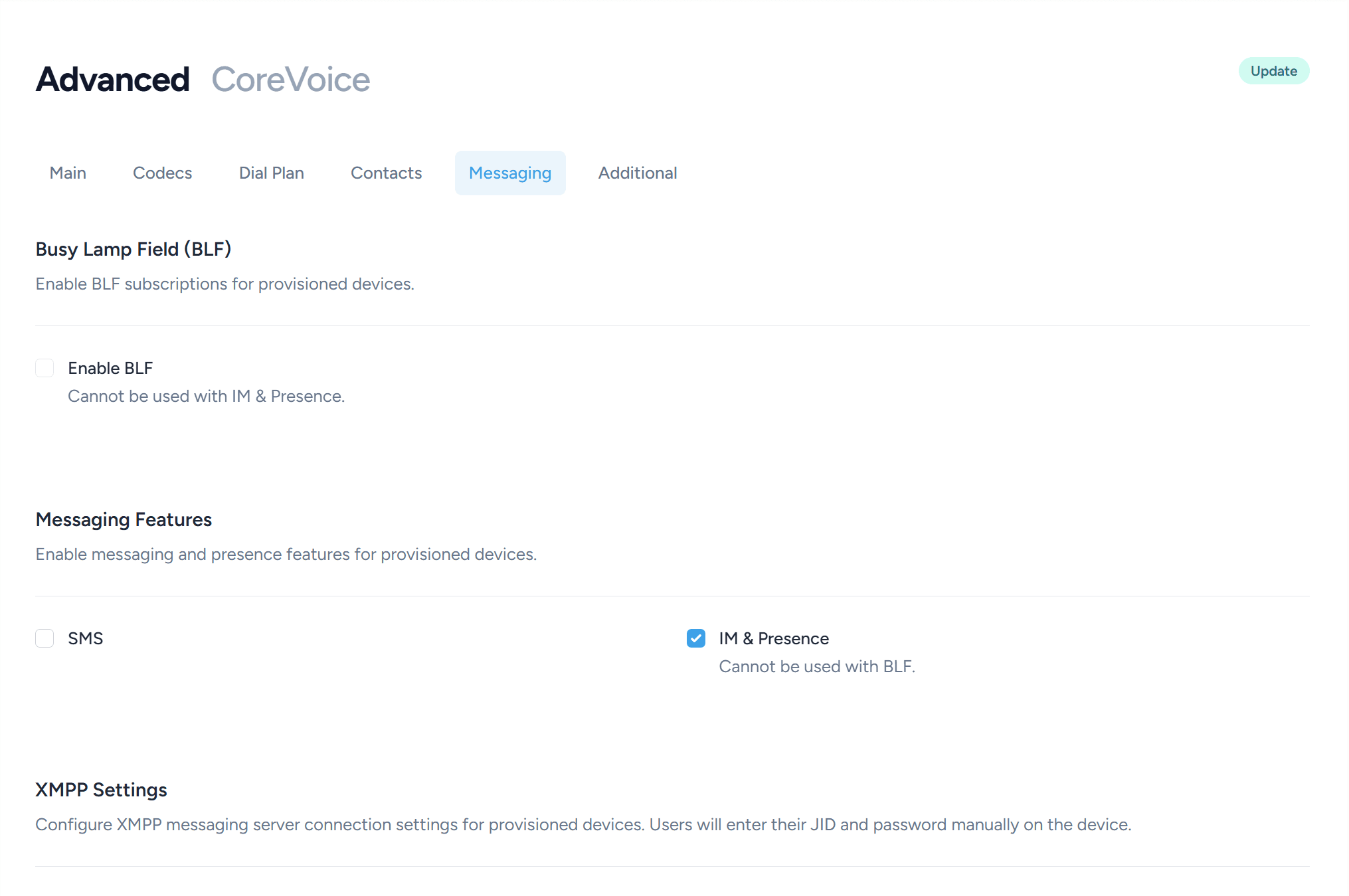
Busy Lamp Field (BLF)
Enable BLF
When enabled, provisioned softphones will subscribe to BLF (Busy Lamp Field) events so users can see the call state of colleagues (idle, ringing, on a call) on their contacts / speed-dial list.
BLF and IM & Presence cannot both be enabled at the same time. Turning one on will automatically turn the other off in the form.
Messaging Features
SMS
Enables the SMS messaging tab in the softphone. When disabled, the SMS tab is hidden and the feature is unavailable to users.
For provisioned BYO PBX accounts, the project’s SMS setting takes precedence over a conflicting setting in a QR code. Save changes in the portal and let the app refresh its provisioning.
Enabling SMS does not connect a carrier messaging service by itself. For the forthcoming Telnyx and Twilio integration, see SMS for BYO PBX.
IM & Presence
Enables SIP instant messaging and presence for compatible SIP accounts. XMPP chat uses the separate Enable XMPP switch and account settings below. Enabling SIP IM does not create or connect an XMPP account.
IM & Presence cannot be used together with BLF — the two options are mutually exclusive. Enabling IM & Presence will automatically disable BLF, and vice versa.
XMPP Settings
This section defines how the softphone connects to your XMPP server. All fields below are disabled until Enable XMPP is switched on.
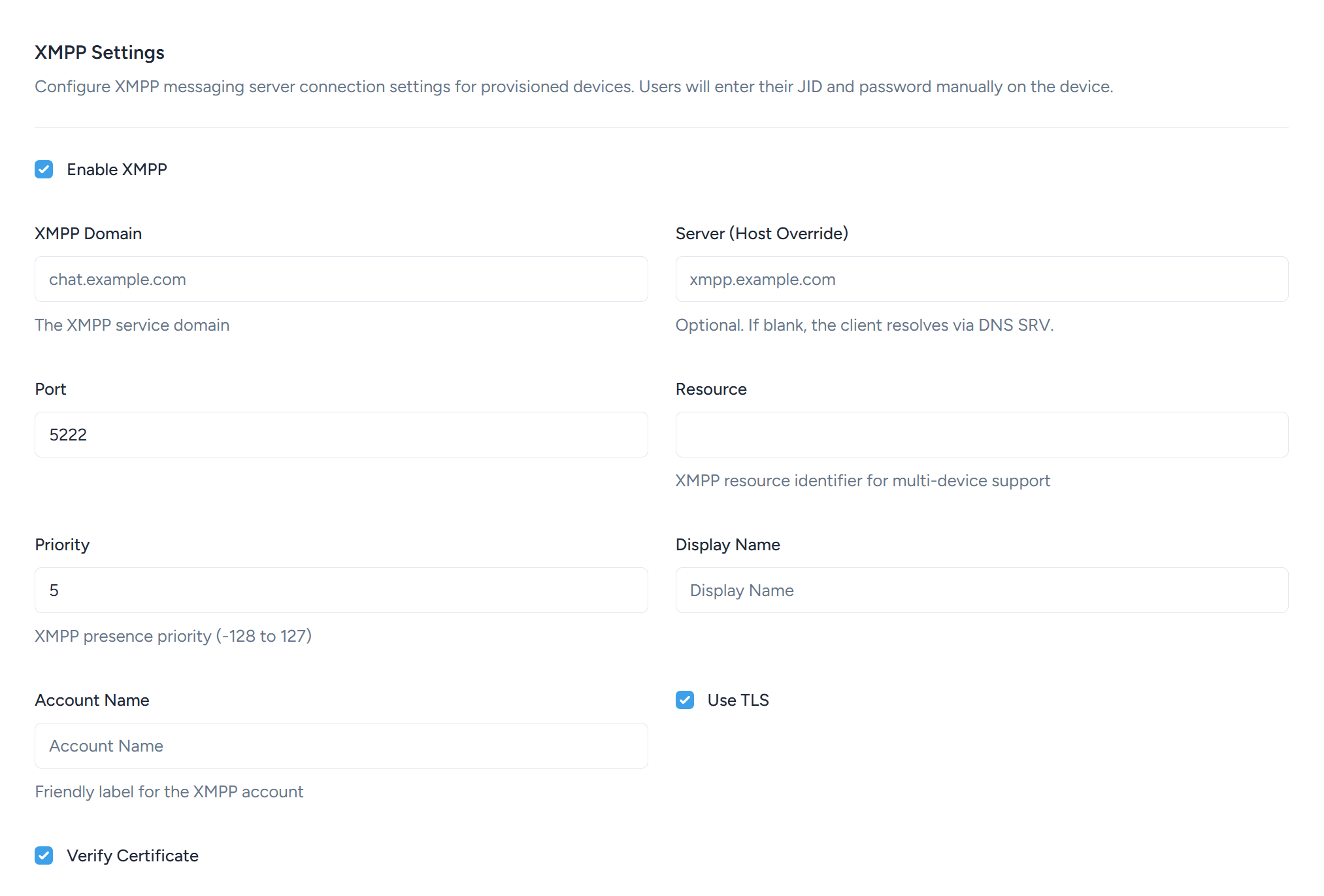
Enable XMPP
Master switch for the XMPP server settings. Leave off if you are not using an XMPP server. When off, none of the fields in this section are pushed to the device.
XMPP Domain
The XMPP service domain — the part after the @ in a user’s JID. For example, if users log in as alice@chat.example.com, the domain is chat.example.com.
Server (Host Override)
Optional. The hostname or IP address of the XMPP server the softphone should connect to. Leave blank and the client will look the server up using a DNS SRV record (_xmpp-client._tcp.<domain>). Set it only if you need to override that lookup, for example when the server hostname does not match the XMPP domain.
For most deployments, leave Server (Host Override) blank and publish an _xmpp-client._tcp SRV record for your XMPP domain. That way you can move or scale the server without needing to re-provision every softphone.
Port
The TCP port used to connect to the XMPP server. The XMPP standard client port is 5222, which is used by default.
Resource
Optional XMPP resource identifier appended to the JID (the part after the /). The resource lets a single account be signed in from multiple devices at the same time — for example the same user on a desktop and a mobile. If left blank the softphone will choose a resource automatically.
Priority
XMPP presence priority for this device. When the same account is signed in from multiple devices, incoming messages are delivered to the resource with the highest priority. Valid range is -128 to 127; the default is 5.
Use a higher number on the device you want to receive messages on preferentially, and a lower (or negative) number on secondary devices.
Display Name
The display name for the account, shown in the softphone’s account list and in some chat clients when the user appears in other people’s rosters.
Account Name
A friendly label for the XMPP account inside the softphone. This is only shown locally on the device — it is not sent to the XMPP server.
Use TLS
When enabled, the softphone will use TLS to encrypt the XMPP connection. Enabled by default and strongly recommended for any production deployment.
Verify Certificate
When enabled, the softphone will validate the XMPP server’s TLS certificate against its trust store and reject the connection if the certificate is invalid, expired, or self-signed. Enabled by default. Only turn this off for testing against a server with a self-signed or otherwise untrusted certificate.
Disabling Verify Certificate on production devices leaves the connection open to man-in-the-middle attacks. Always leave it enabled once you have a properly signed certificate installed on your XMPP server.
Saving your changes
Click Save at the bottom of the page to apply the settings. The next time a softphone syncs its provisioning it will pick up the new values.
What users see
Once XMPP is enabled and an account has been provisioned or added, users can connect and start chatting. Point them at:
- Setting up IM — turning IM on and signing in
- Sending IM messages — everyday use
- IM buddies and presence — buddy list and presence
- IM rooms — group conversations
- IM notifications — push notifications